1
Step 1
Start from Home
HomeNew users
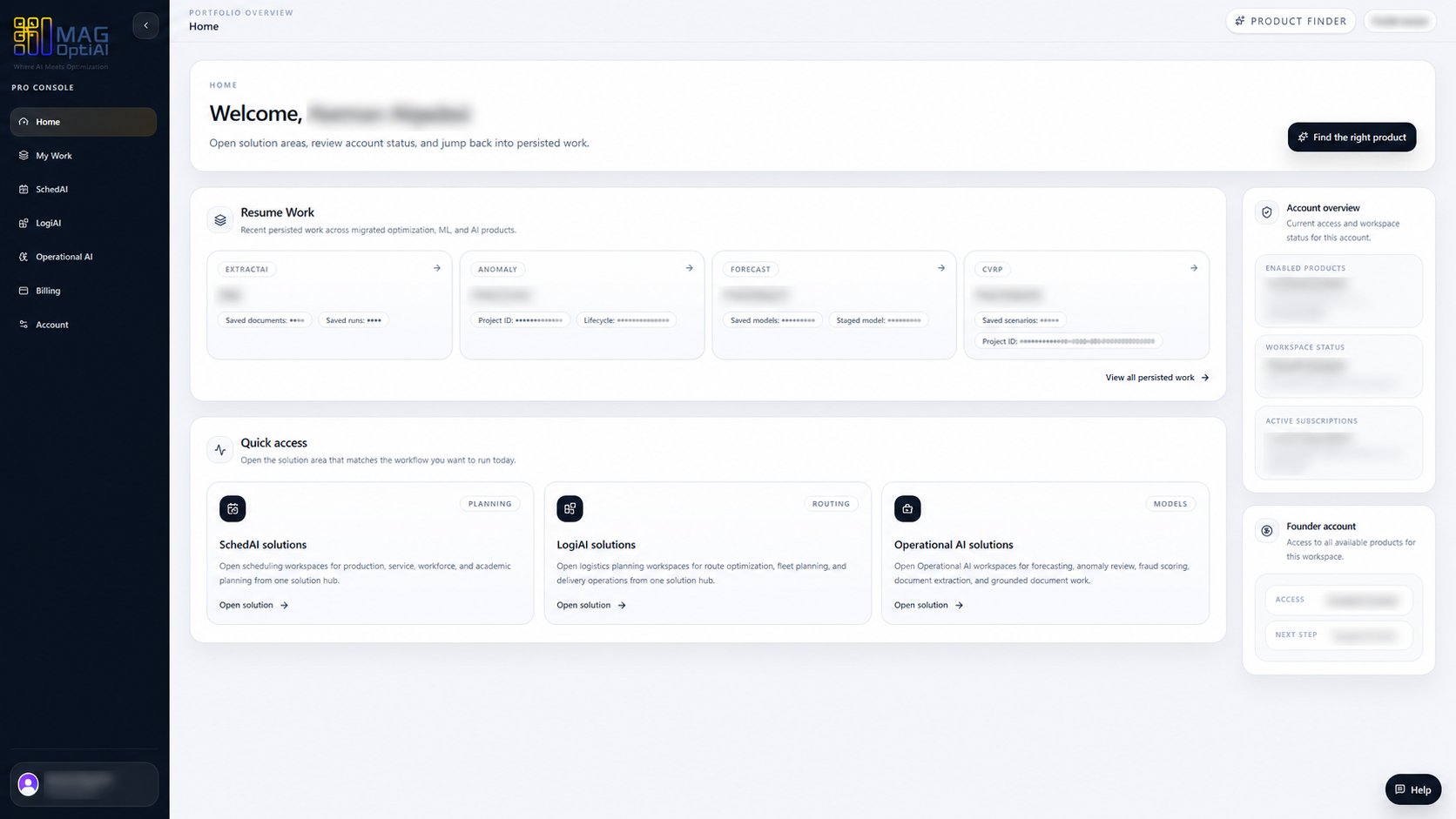
Use Home as your starting point in the Pro Console. From here, you can review recent work, open quick access areas, check account status, and use Product Finder when you are not sure where to begin.

Console basics How-To
Find your home dashboard, product workspaces, My Work, billing, account settings, help, and Product Finder inside the MAG OptiAI Pro Console.
Guide details
Audience
New users
Time
3 minutes
Category
Console basics
Find your home dashboard, product workspaces, My Work, billing, account settings, help, and Product Finder inside the MAG OptiAI Pro Console.
Understand what the Pro Console is for
Start from the Home dashboard
Use the left navigation
Find My Work and saved projects
Open product workspaces
Reach Billing, Account, Help, and Product Finder
Step by step
Follow this quick path to learn where to start, how to move through the console, where to find saved work, how to open product workspaces, and where to access Help, Billing, and Account.
Step 1
Use Home as your starting point in the Pro Console. From here, you can review recent work, open quick access areas, check account status, and use Product Finder when you are not sure where to begin.
Step 2
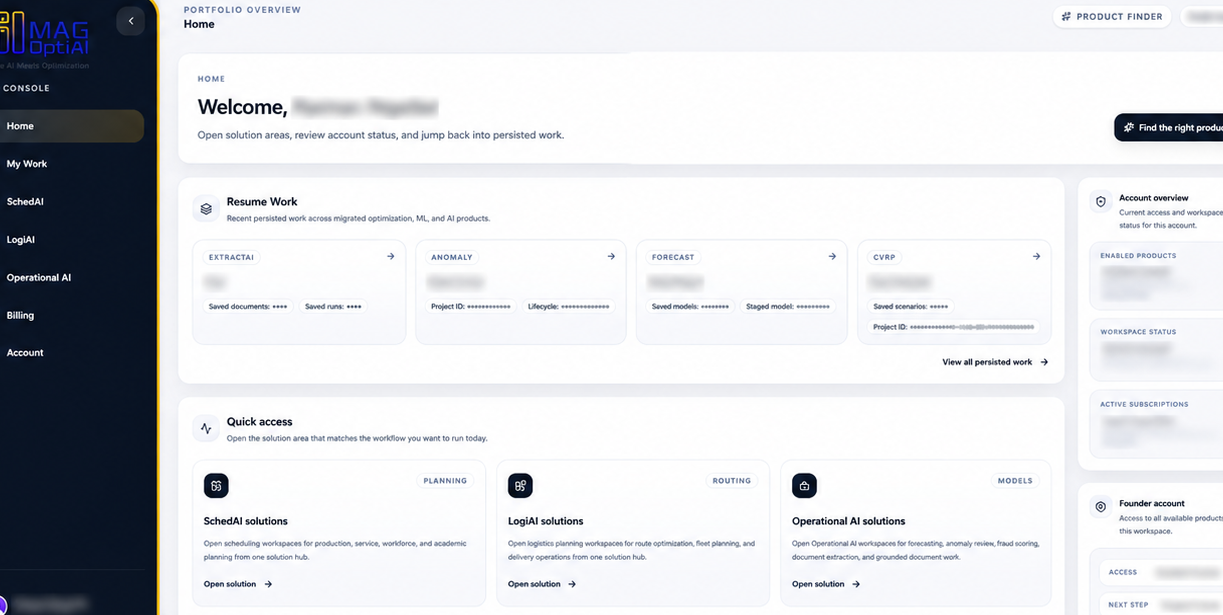
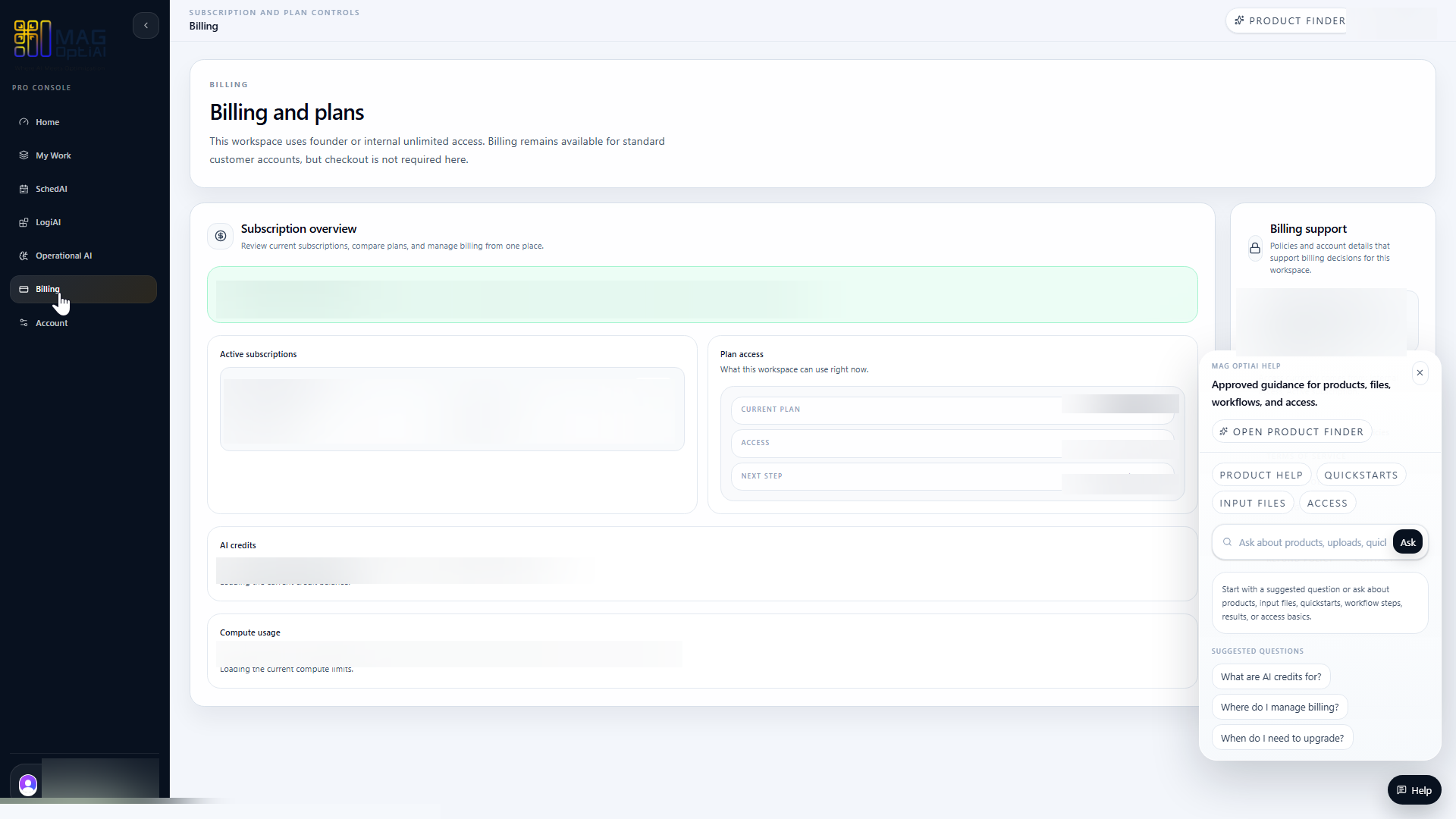
Use the left navigation to move between Home, My Work, product workspaces, billing, account settings, and help. This menu stays available across the Pro Console so you can switch areas without losing your place.
Step 3
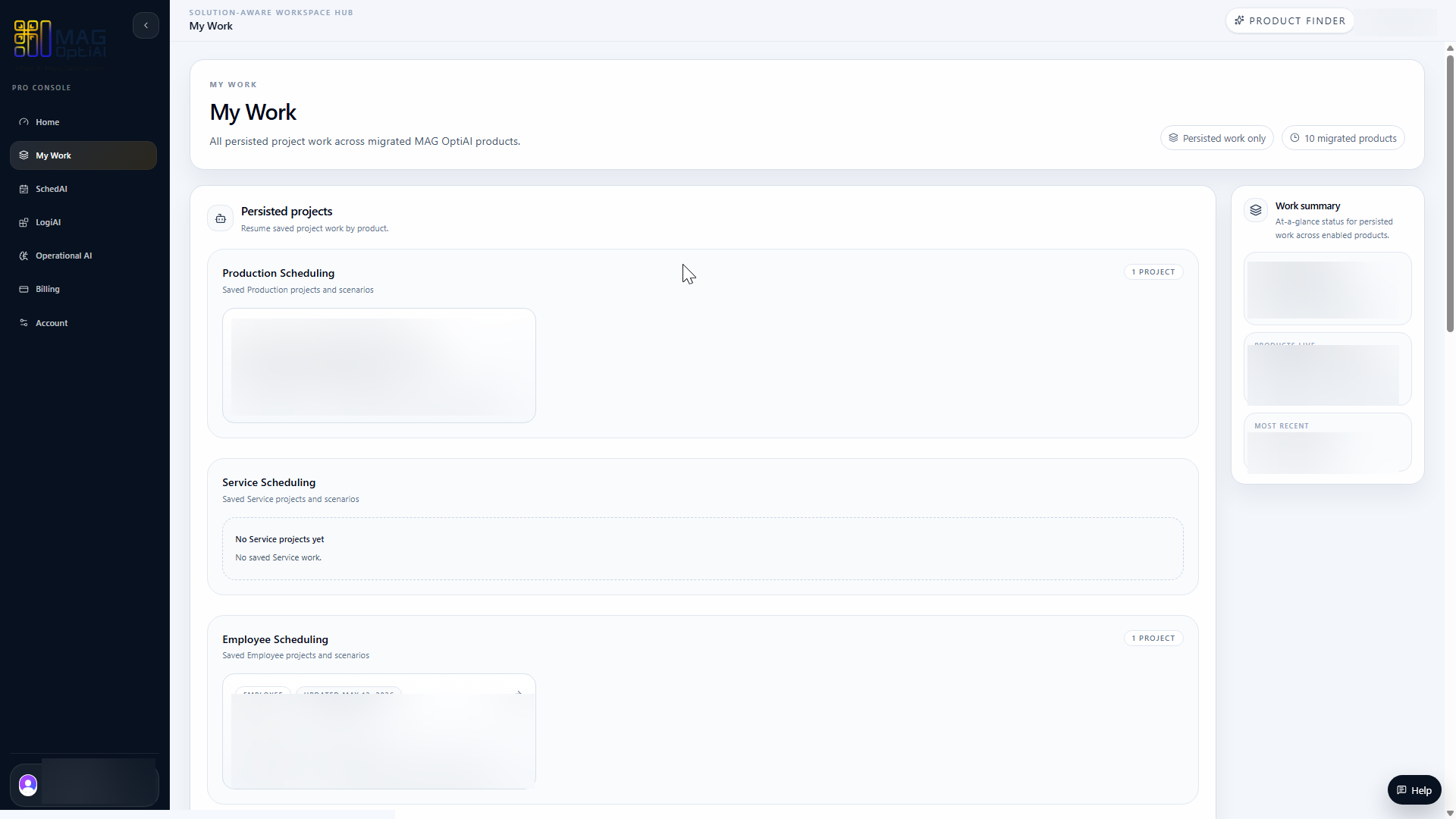
Use My Work to return to saved projects, persisted scenarios, and recent work across MAG OptiAI products. This area helps you continue where you left off without starting over.
Step 4
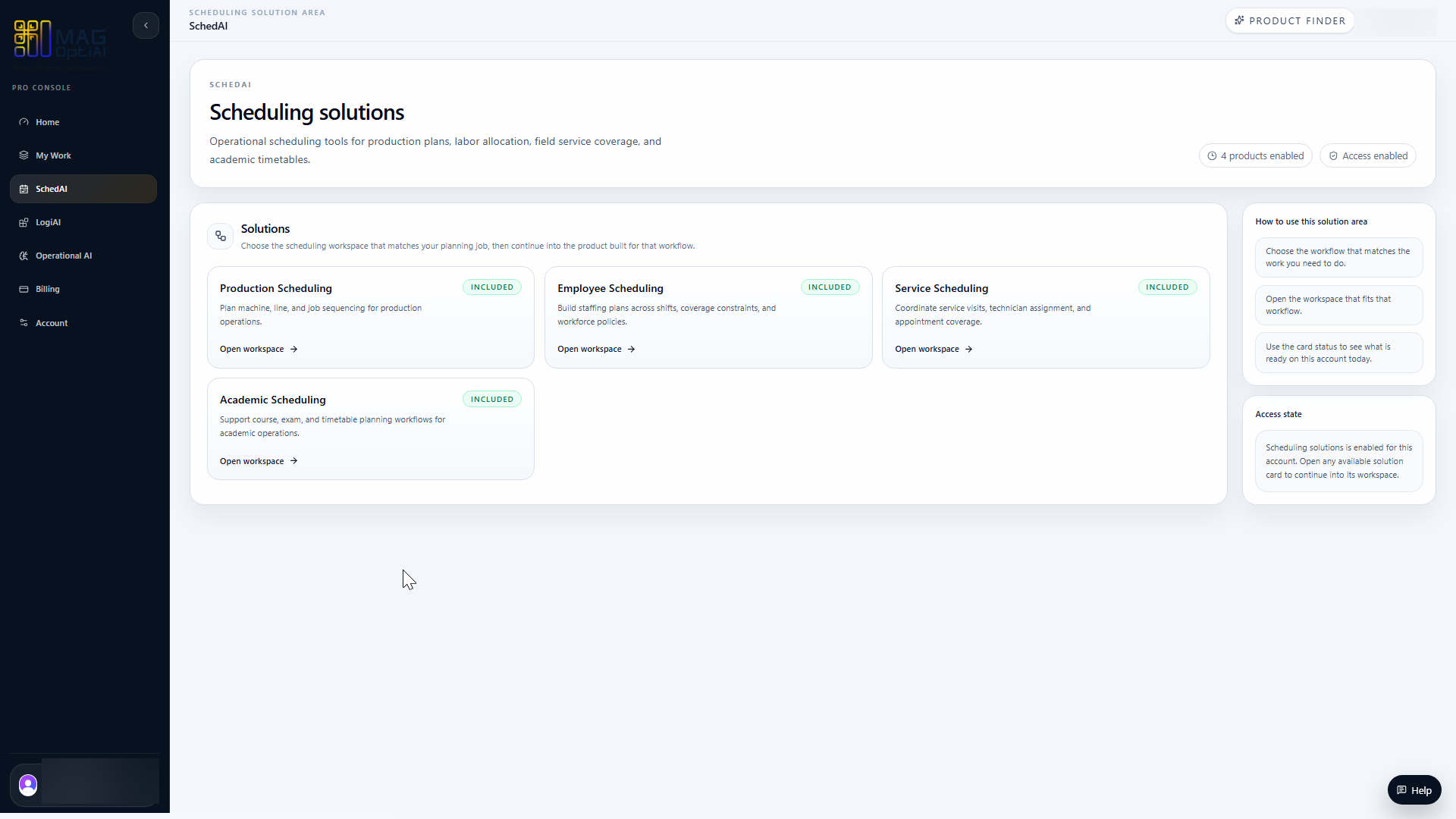
Choose the product workspace that matches your task, then open the workflow you want to use. Each solution area shows the available workflows and the action needed to continue.
Step 5
Use Help when you need guidance, Billing to review plan and credit information, and Account to manage profile or access settings. These areas support users after they start working in the Pro Console.
Tips
Related links
Continue with nearby tasks in the same category.
Match your operational challenge with the right MAG OptiAI workspace before you start building your scenario.
Next
Return to the full how-to library or step back to the resource hub when you want a different kind of guide.