Step 1
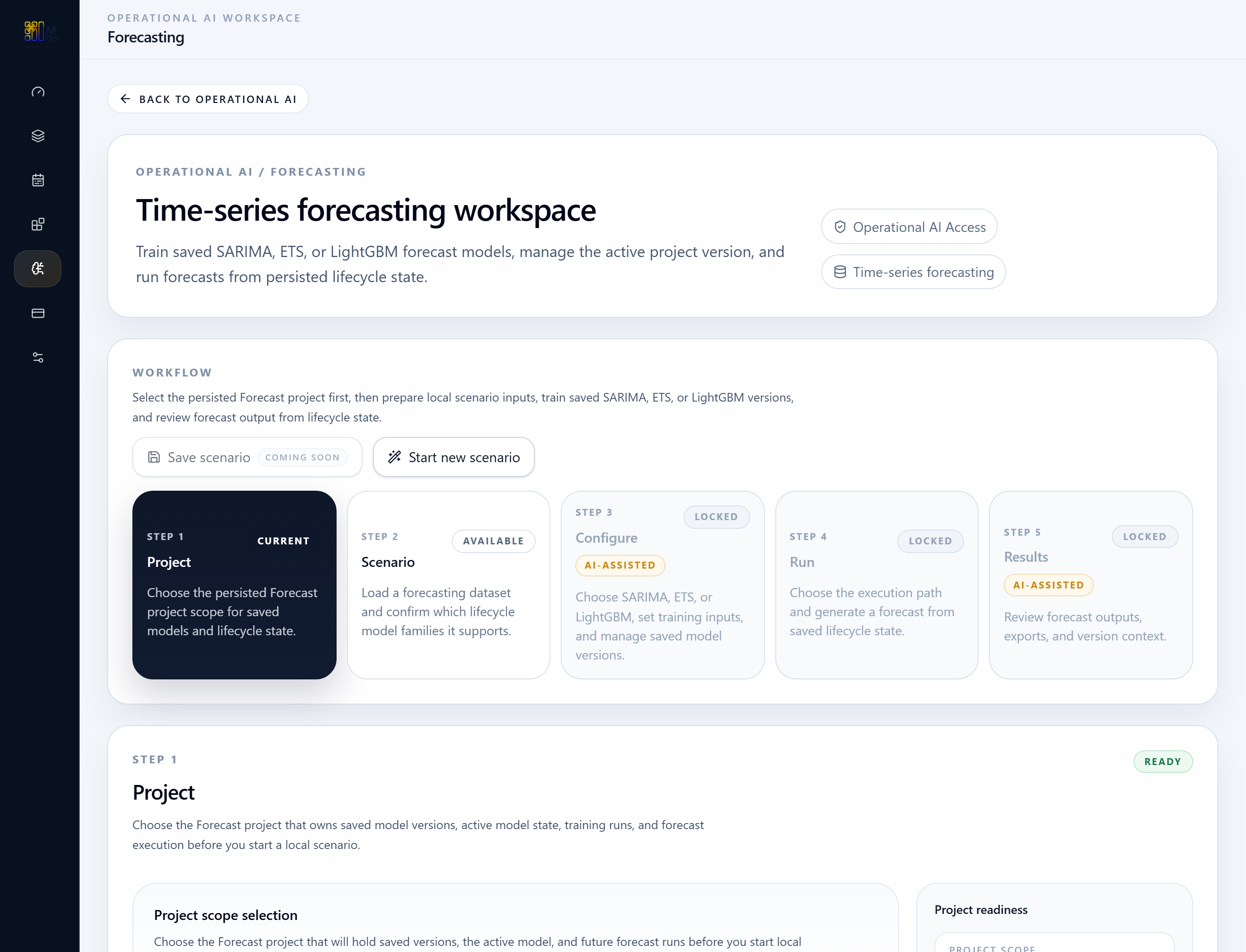
Open the workspace
Start in Forecasting and confirm the active project-backed workflow shell.

Operational AI Quickstart
Select a project, stage a forecasting dataset, train or activate a saved model version, then run and review forecast outputs.
Follow the workflow step by step, using the screenshots where available and the concise action notes throughout.
Before you start
Step 1
Start in Forecasting and confirm the active project-backed workflow shell.
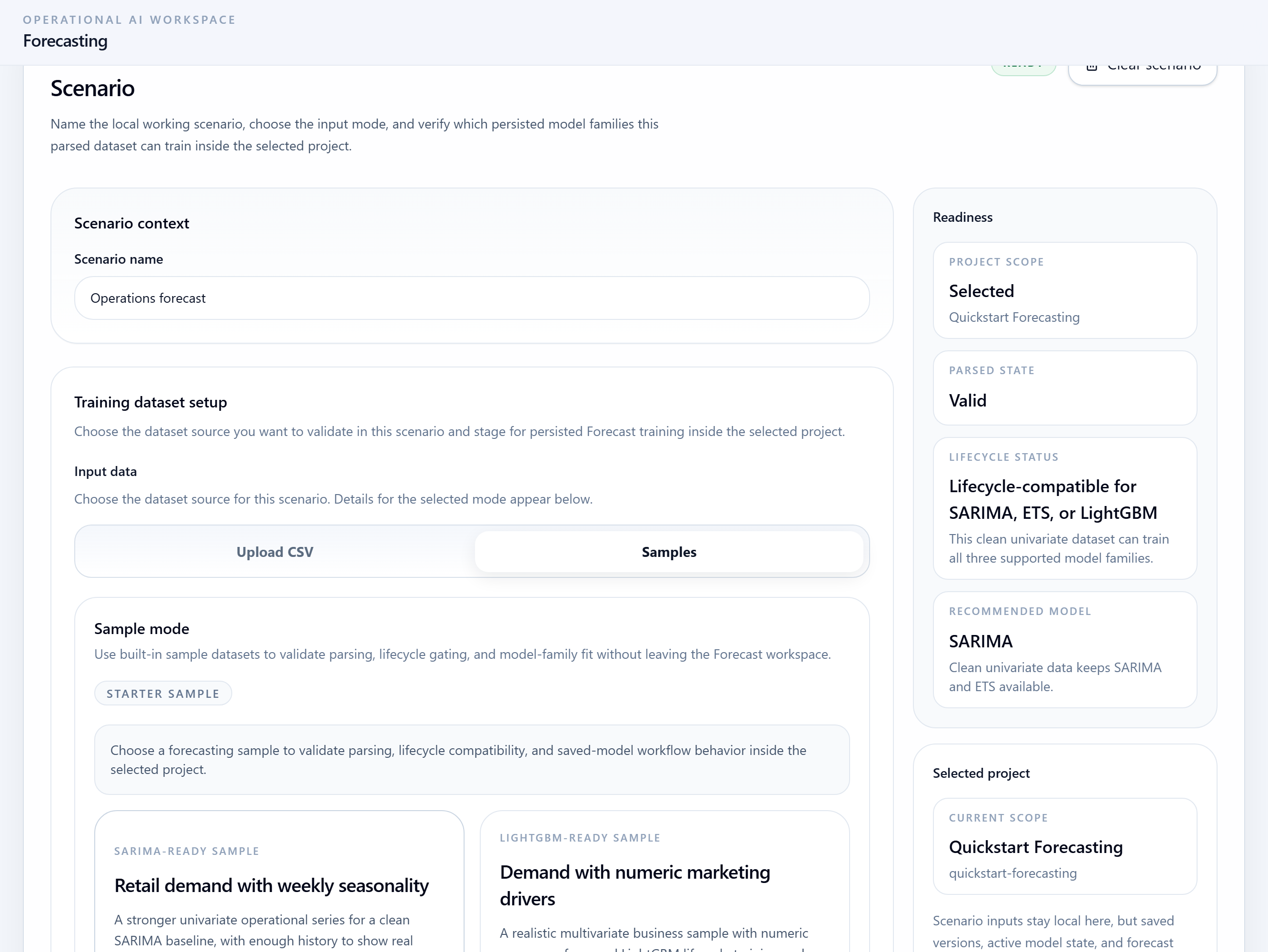
Step 2
Upload a forecasting CSV or load a validated starter sample inside the selected project.
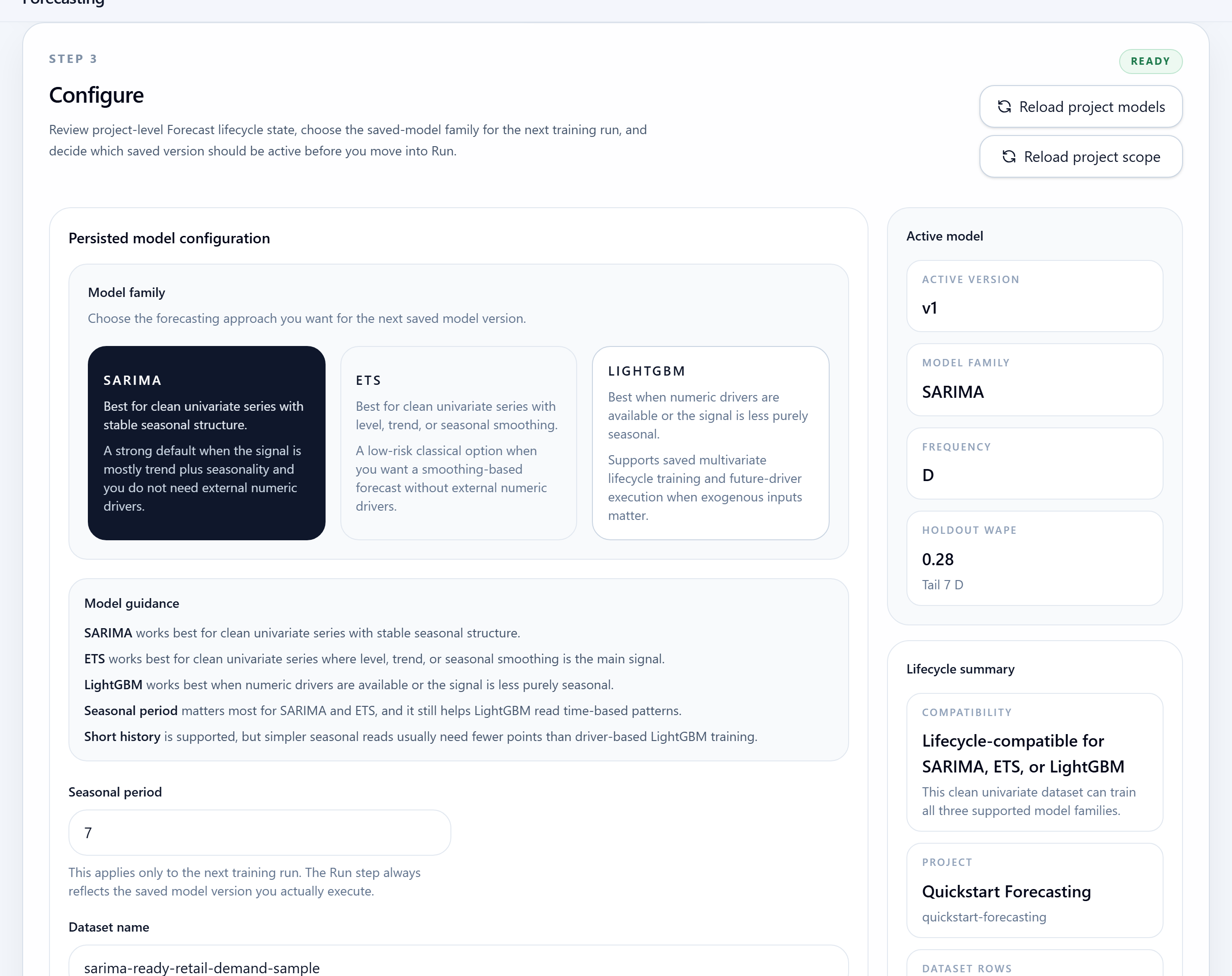
Step 3
Use Configure to review lifecycle state, train a saved version, and choose the active model path.
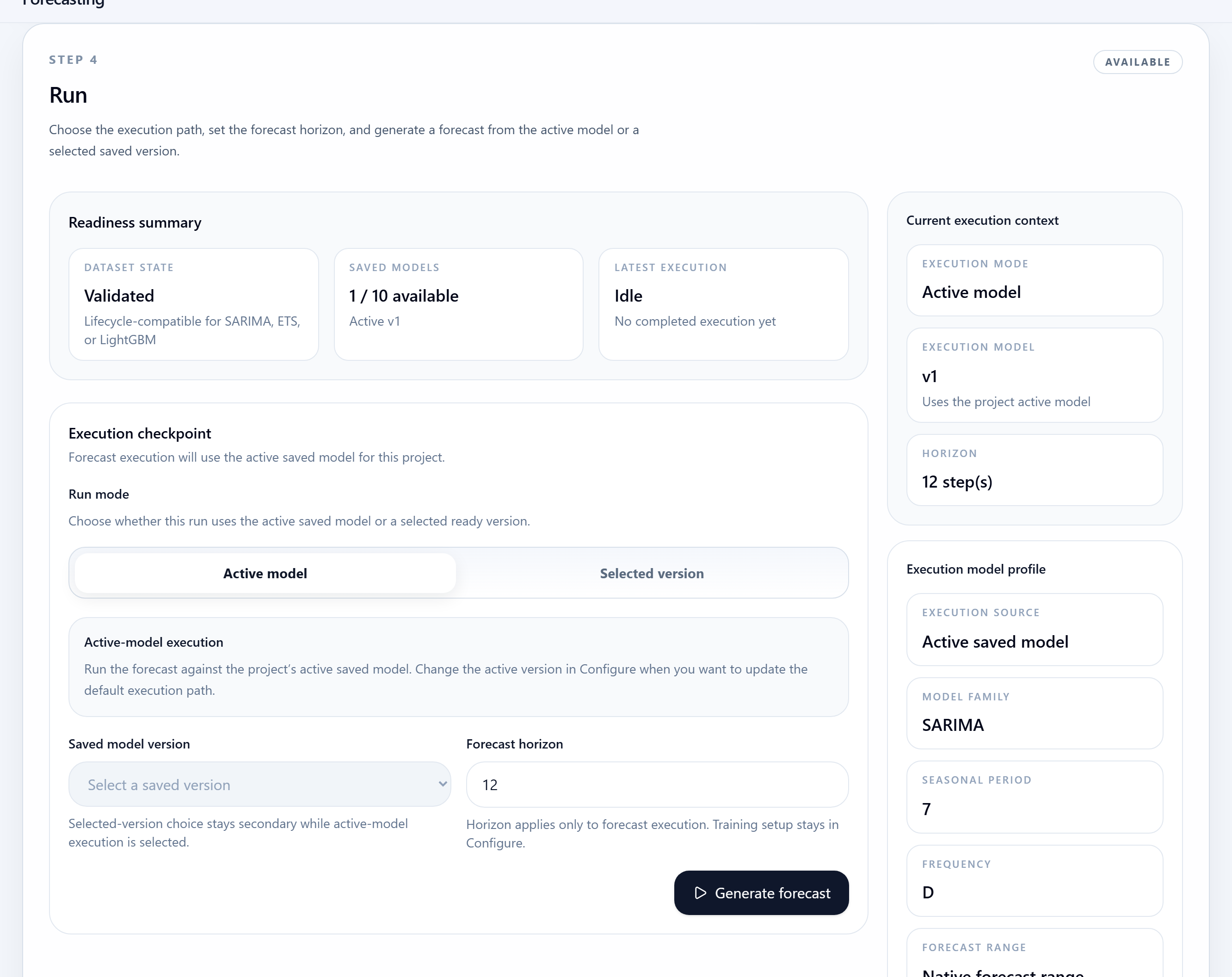
Step 4
Execute the forecast against the active model or a selected saved version.
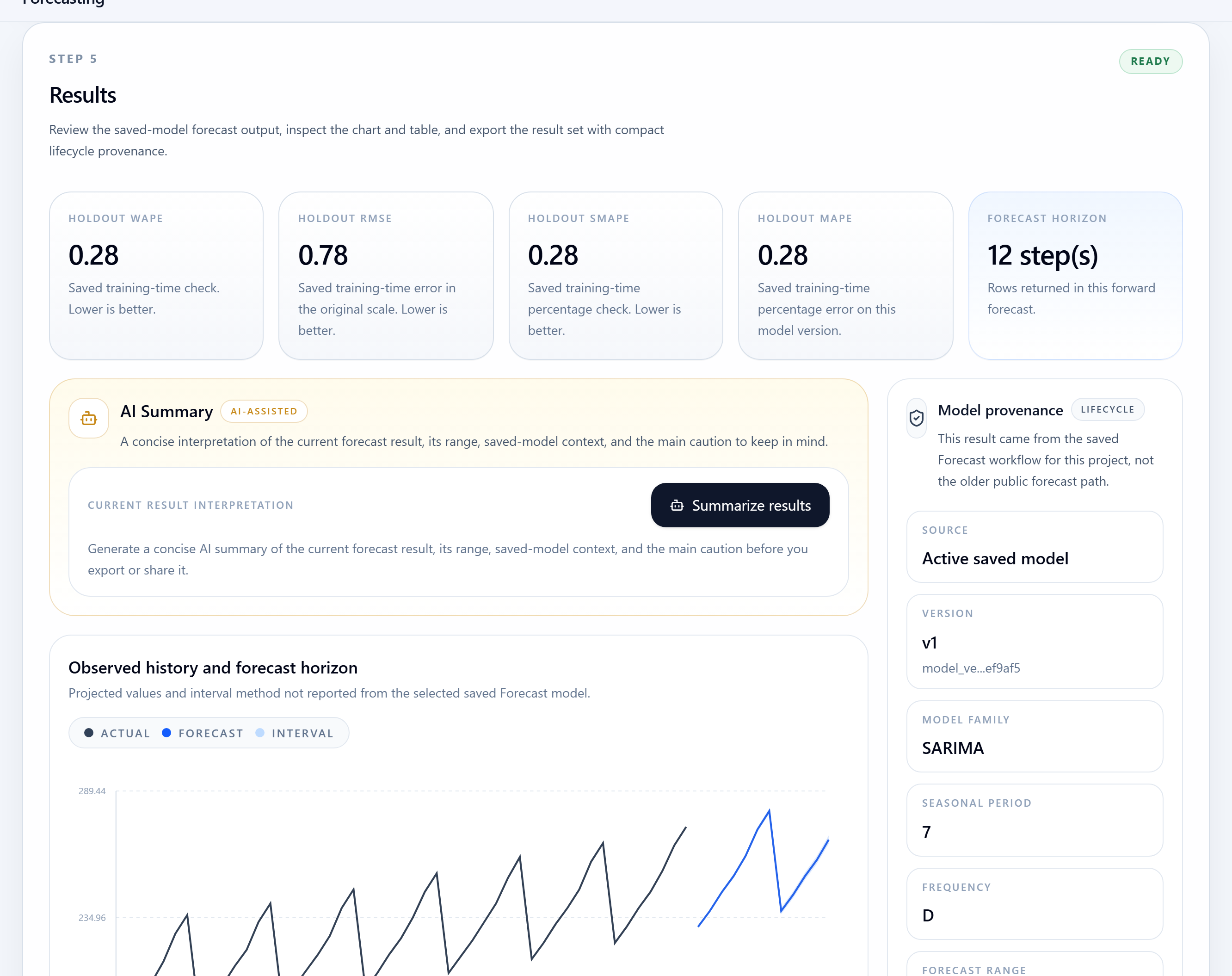
Step 5
Inspect returned forecast values, confidence ranges, and result interpretation surfaces.
Expected outputs
Common mistakes
Next steps
Open the live workspace when you are ready to execute, or use the related product, use case, and spec pages when you need more context first.
Navigate
Return to the quickstart index for another product walkthrough, or go back to the resource hub for use cases, input specs, and how-to guides.