Step 1
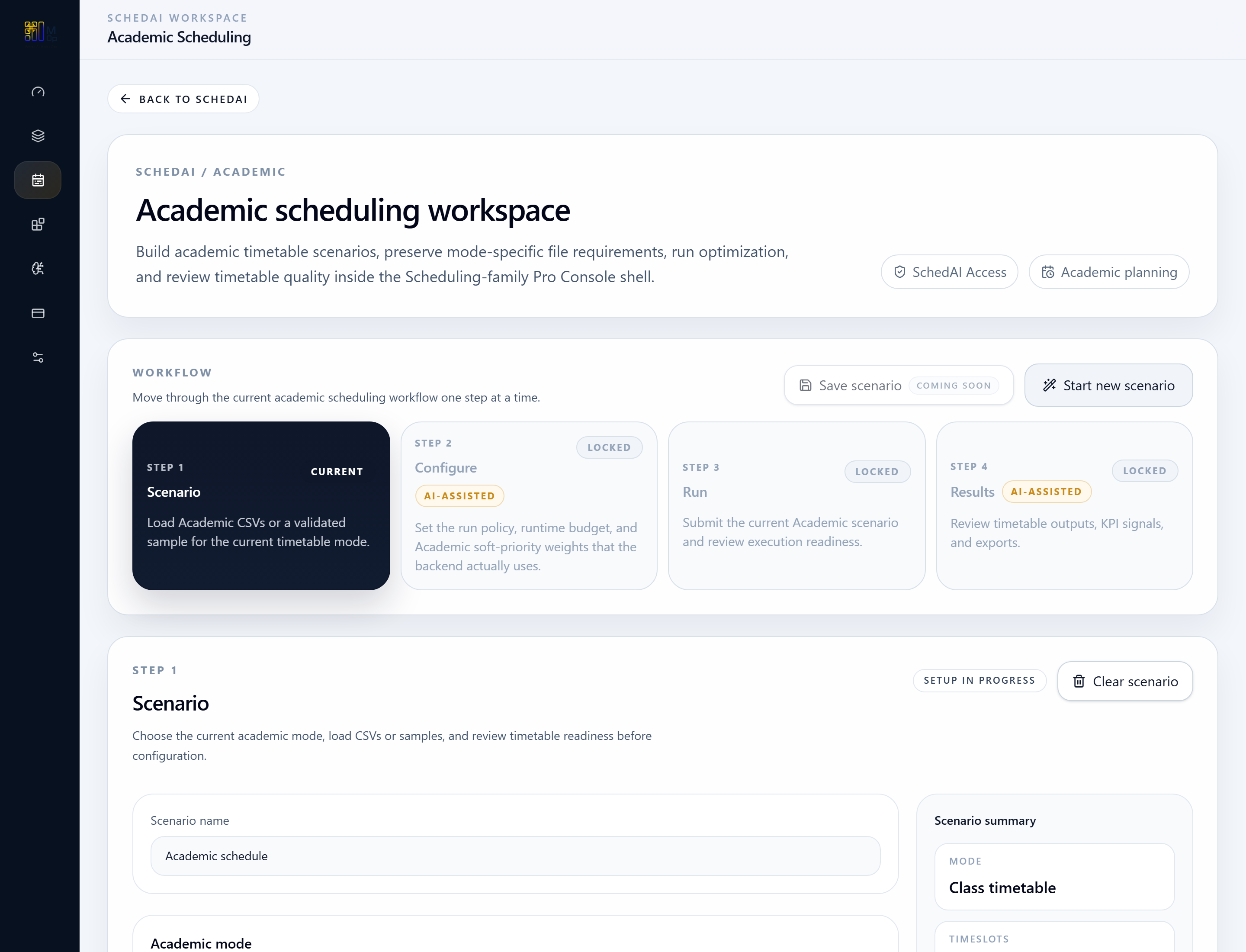
Open the workspace
Start in the Academic Scheduling workspace and orient around the timetable workflow.

SchedAI Quickstart
Choose the academic mode, stage timetable inputs, run the solver, and review timetable outputs and scheduling KPIs.
Follow the workflow step by step, using the screenshots where available and the concise action notes throughout.
Before you start
Step 1
Start in the Academic Scheduling workspace and orient around the timetable workflow.
Step 2
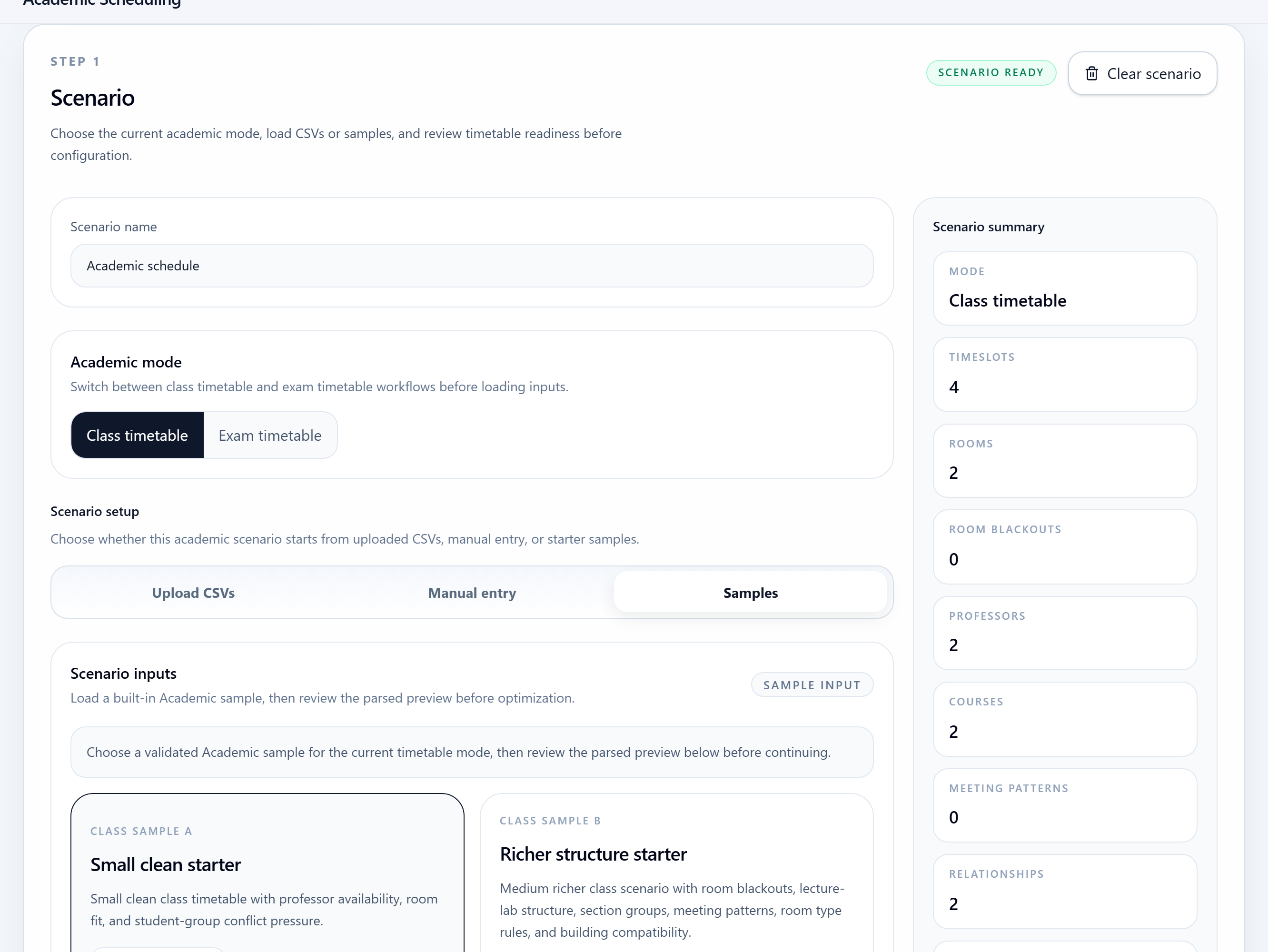
Choose the academic mode, upload the matching CSVs, or load a validated starter sample.
Step 3
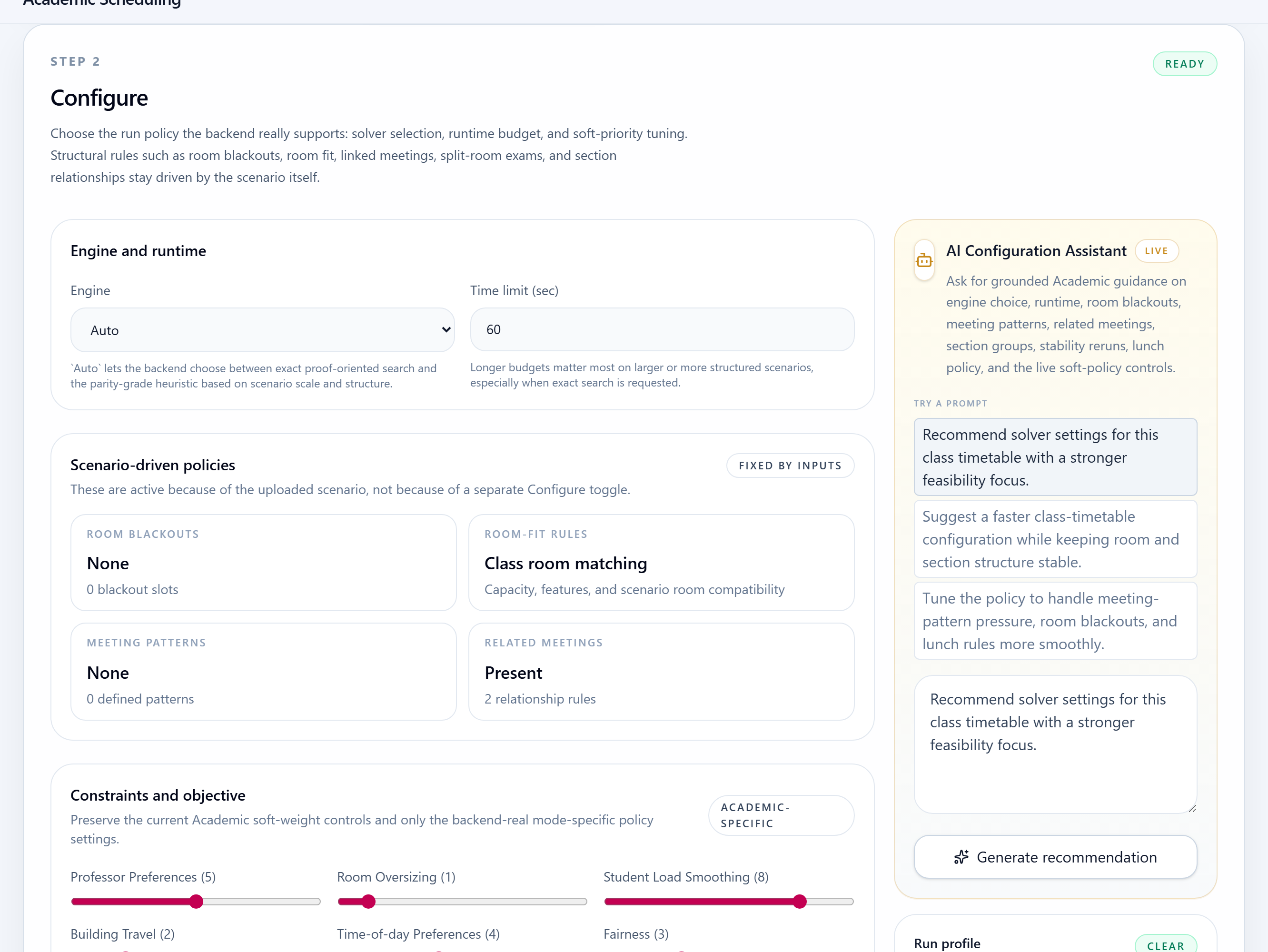
Confirm solver and policy settings before the timetable run is launched.
Step 4
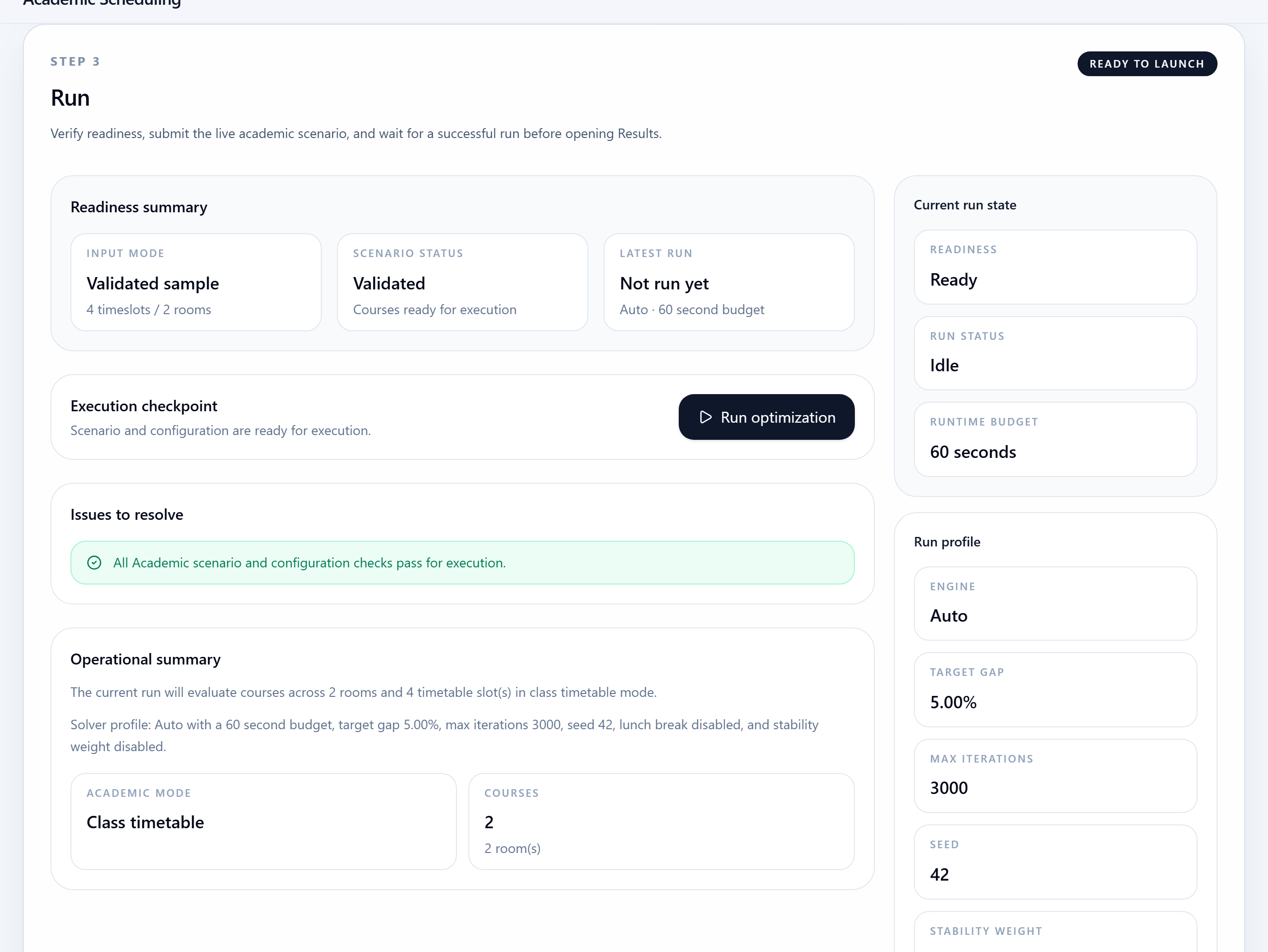
Use the run step once the scenario and configuration both show ready status.
Step 5
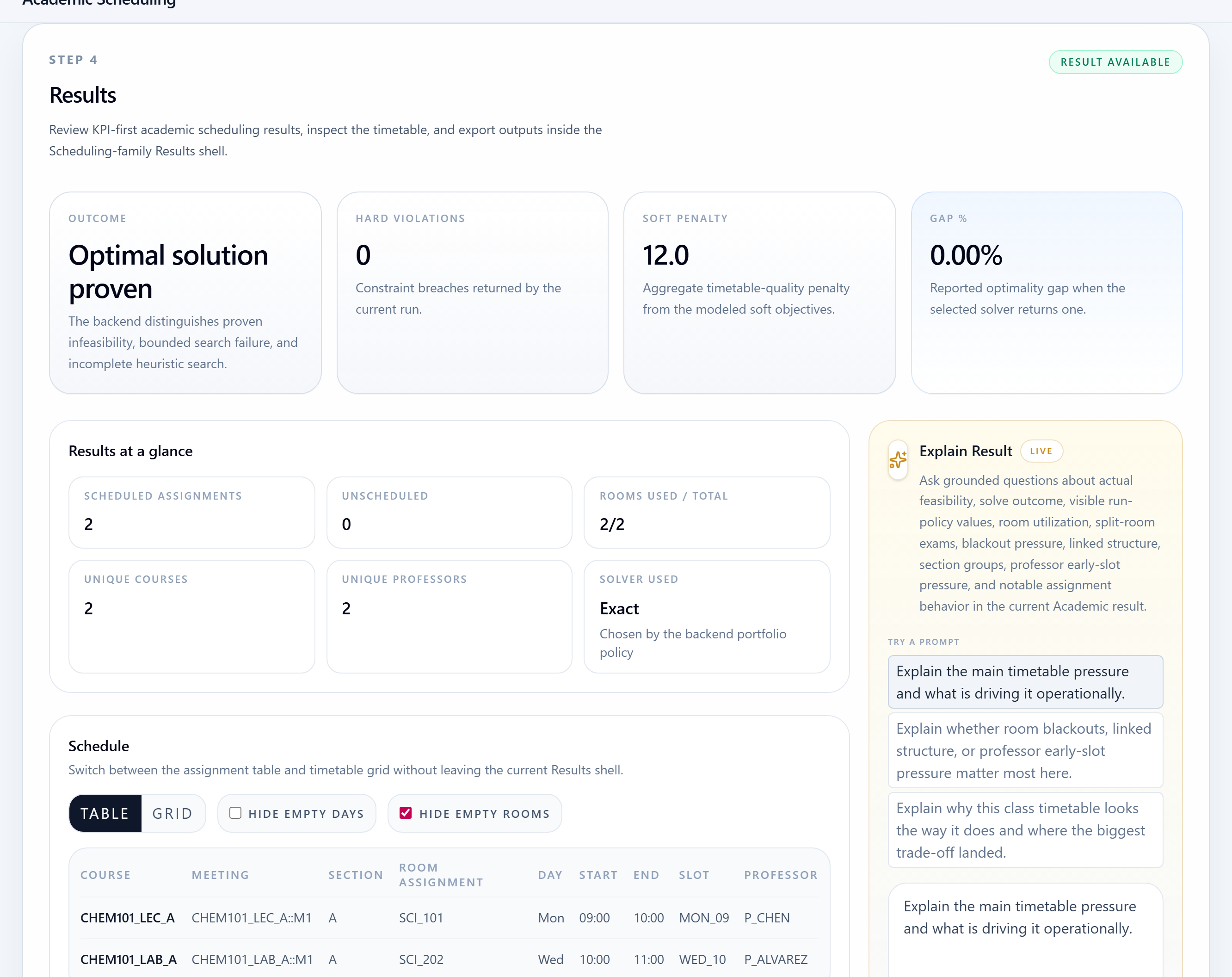
Inspect the timetable result, KPI summary, and detailed assignment views for the current academic mode.
Expected outputs
Common mistakes
Next steps
Open the live workspace when you are ready to execute, or use the related product, use case, and spec pages when you need more context first.
Navigate
Return to the quickstart index for another product walkthrough, or go back to the resource hub for use cases, input specs, and how-to guides.