MAG OptiAI

SchedAI Quickstart

Service Scheduling visual quickstart

Load the routing bundle, configure service policy, run optimization, and review technician schedules, coverage, and route outputs.

Visual walkthrough

Follow the workflow step by step, using the screenshots where available and the concise action notes throughout.

Before you start

Make sure location ids and depot references line up across files.
Decide whether you are validating with a sample or a live weekly service scenario.

Step 1

Open the workspace

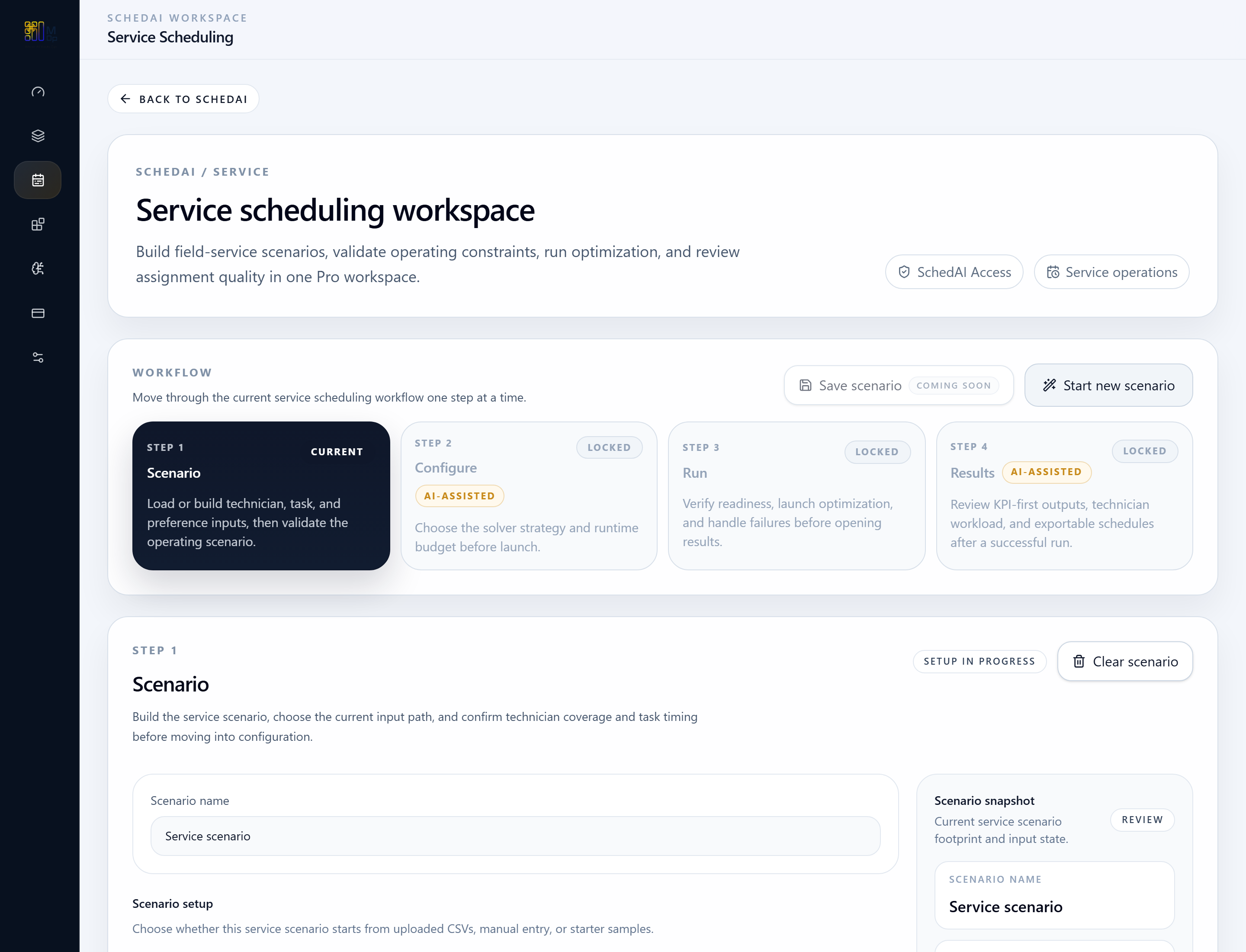
Start in the Service Scheduling workspace and review the step shell before staging files.

SchedAI Service workspace overview showing the service scheduling flow.
The service workspace centers the scenario, configuration, run, and results flow in one guided layout.

Step 2

Stage service inputs

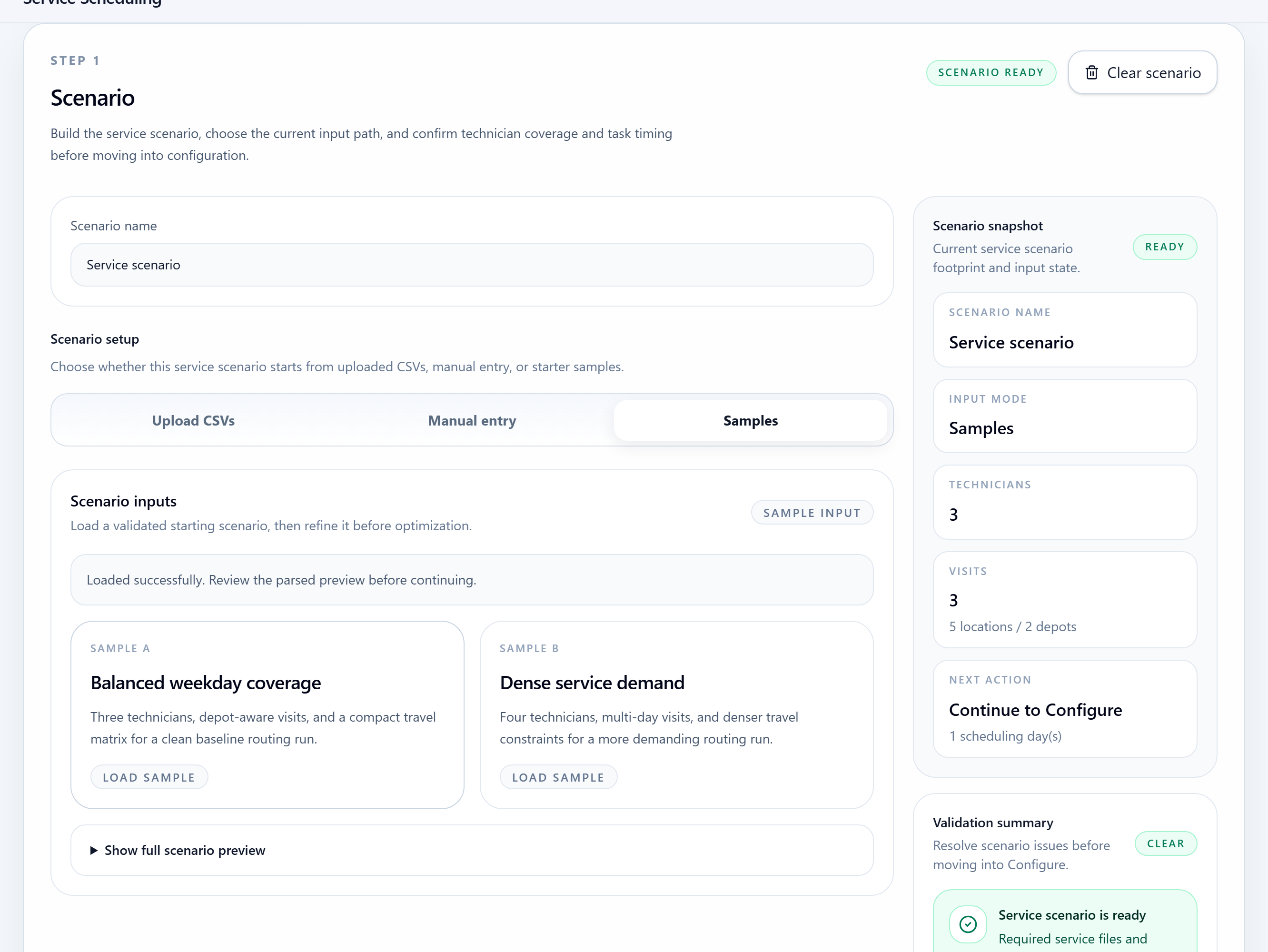
Load the required service CSV bundle or a starter sample so the routing scenario can be validated.

SchedAI Service scenario setup with service bundle inputs and sample options.
Users stage technicians, locations, visits, and travel matrices before moving into configuration.

Step 3

Check scheduling policy

Review service policy and runtime settings before the optimization request is submitted.
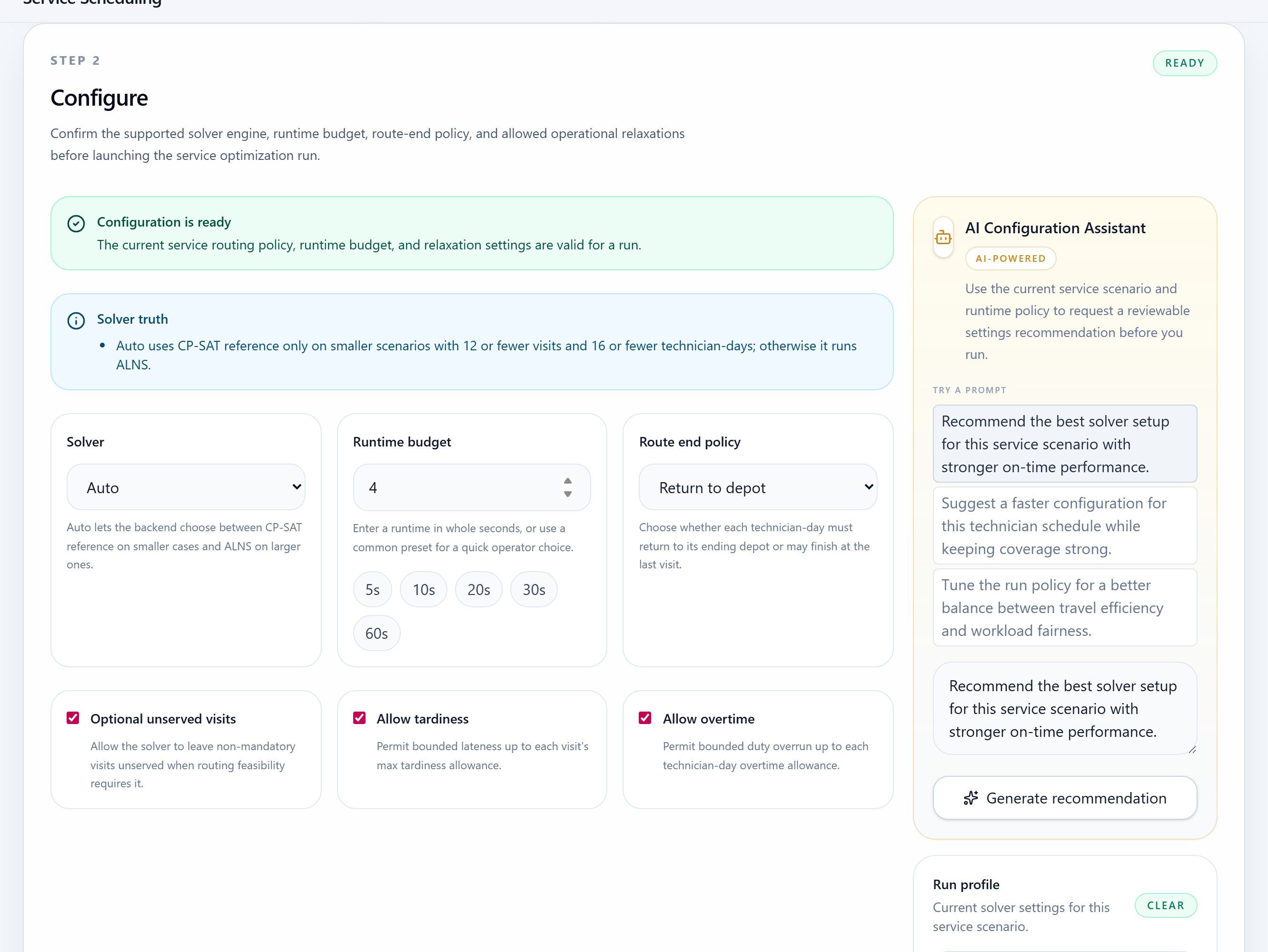
SchedAI Service configuration step with runtime and service policy controls.
The configuration step keeps routing and scheduling policy visible before the optimization request is launched.

Step 4

Run optimization

Launch the optimization once the service scenario and configuration both clear validation.
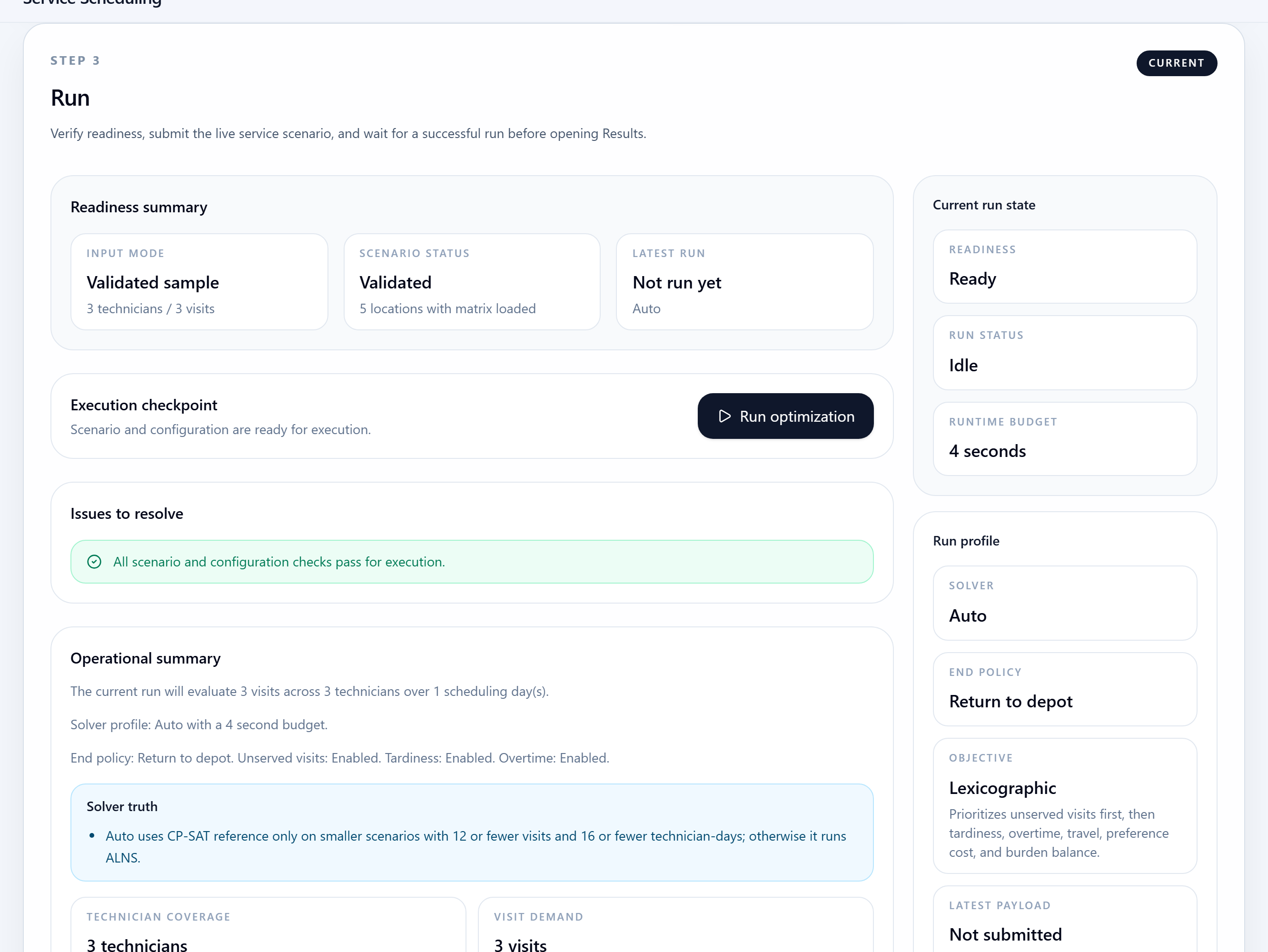
SchedAI Service run step with readiness summary and optimization action.
The run step validates the staged routing bundle and service policy before optimization.

Step 5

Review technician outputs

Inspect the KPI summary, technician timeline, and route map to confirm coverage and travel behavior.
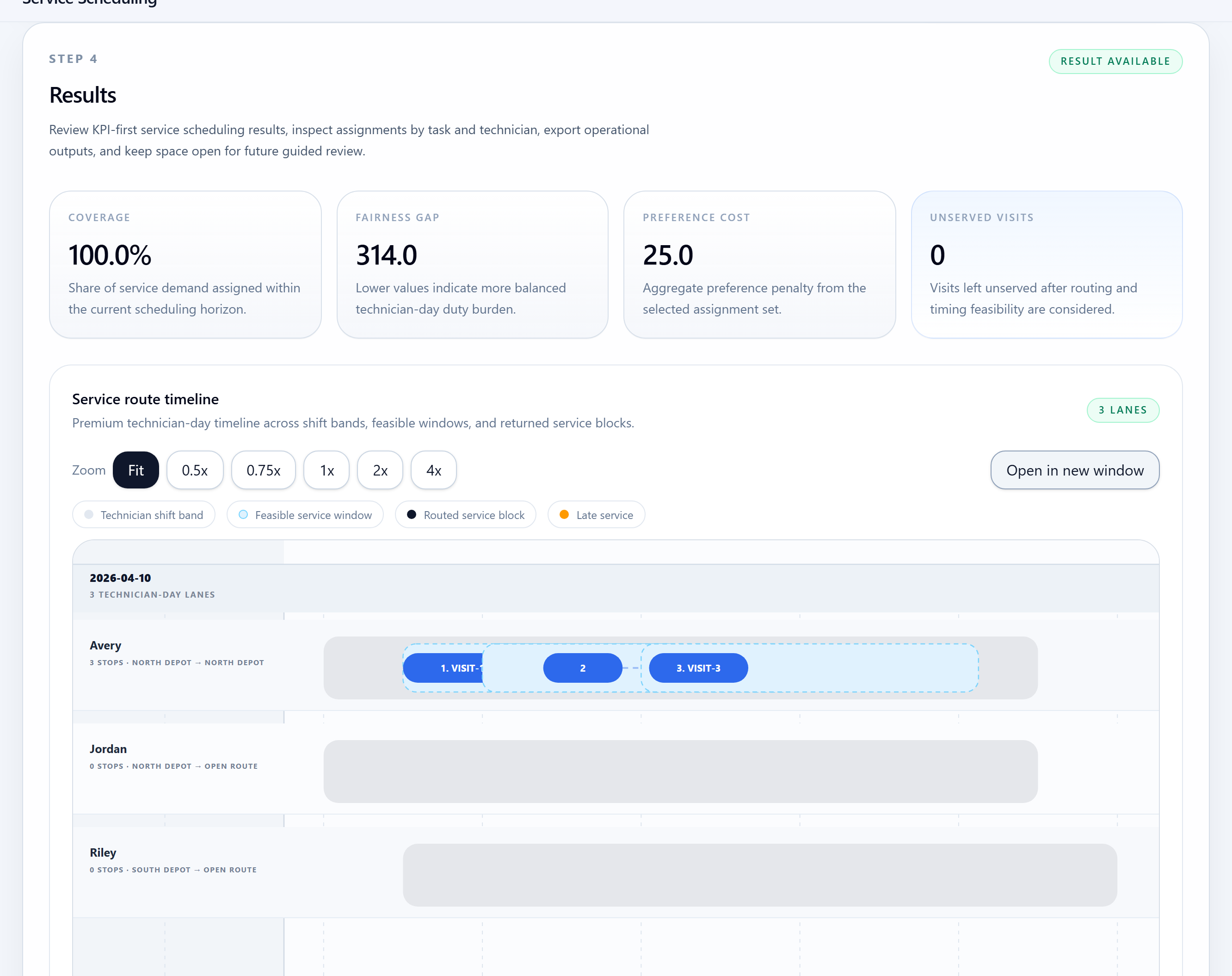
SchedAI Service results with KPIs, technician timeline, and route map.
Results combine KPI review with technician schedule timelines and mapped route outputs.

Expected outputs

Coverage, fairness, and runtime KPI summary
Technician timeline output
Route map and route assignment details

Common mistakes

Uploading an incomplete travel matrix
Leaving visit or depot references unmatched across files
Treating a stale result as current after changing service inputs

Next steps

Move from walkthrough to the right working page

Open the live workspace when you are ready to execute, or use the related product, use case, and spec pages when you need more context first.

Open workspace

Move straight into the live Pro Console workspace.

Product page

Review the product overview and launch positioning.

Input spec

Confirm the required data shape before upload.

Use case

See where this workflow fits operationally.

Pricing

Check plan and rollout options.

Navigate

Keep this quickstart connected to the resource library

Return to the quickstart index for another product walkthrough, or go back to the resource hub for use cases, input specs, and how-to guides.