Step 1
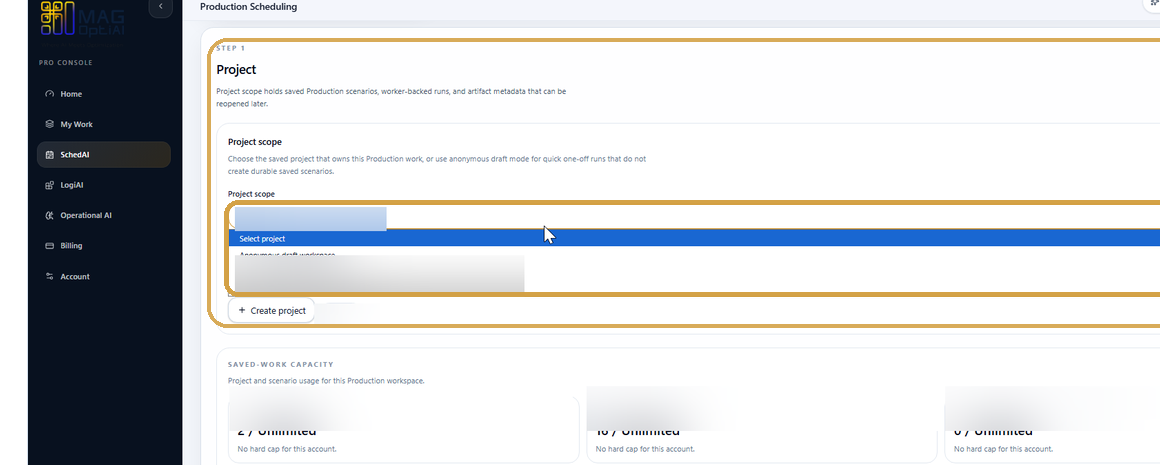
Find and open the saved project
Use the Project step to find the saved project you want to manage, then open it from the project list. Once selected, the project details, lifecycle state, scenarios, and management actions become available.
Project basics How-To
Review existing projects, reopen saved work, rename a project when needed, and archive projects you no longer want to keep active in workspace lists.
Guide details
Audience
Product users and account owners
Time
4 minutes
Category
Project basics
Review existing projects, reopen saved work, rename a project when needed, and archive projects you no longer want to keep active in workspace lists.
Find saved projects inside My Work or a product workspace
Open an existing project
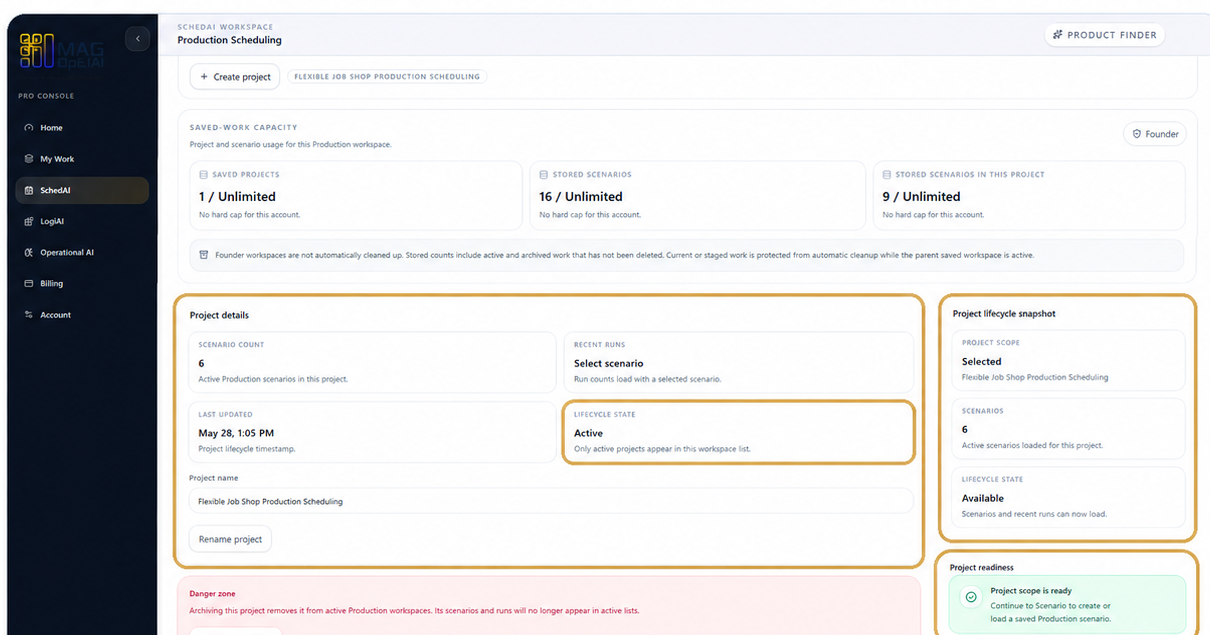
Review project details
Rename a project when needed
Archive a project from the danger zone
Project lifecycle
A project lifecycle shows the current state of a saved project inside a workspace. Active projects can be reopened, reviewed, renamed, and continued. When a project is archived, its status changes to archived and it no longer appears in active workspace lists.
An active project appears in workspace lists and can be reopened, reviewed, renamed, and continued.
Lifecycle state tells users whether a project is active, selected, available, anonymous draft, or archived.
An archived project is removed from active workspace lists. Its scenarios and runs no longer appear in active lists.
Use Archive project when the project no longer needs to stay active. This workflow does not present archive as permanent deletion.
Step by step
Each step gives you the action, the reason it matters, and the visual state to look for before continuing.
Step 1
Use the Project step to find the saved project you want to manage, then open it from the project list. Once selected, the project details, lifecycle state, scenarios, and management actions become available.
Step 2
Review the selected project before making changes. Check the project details, lifecycle state, saved scenario count, and readiness information to confirm the project is active and ready to manage.

Step 3
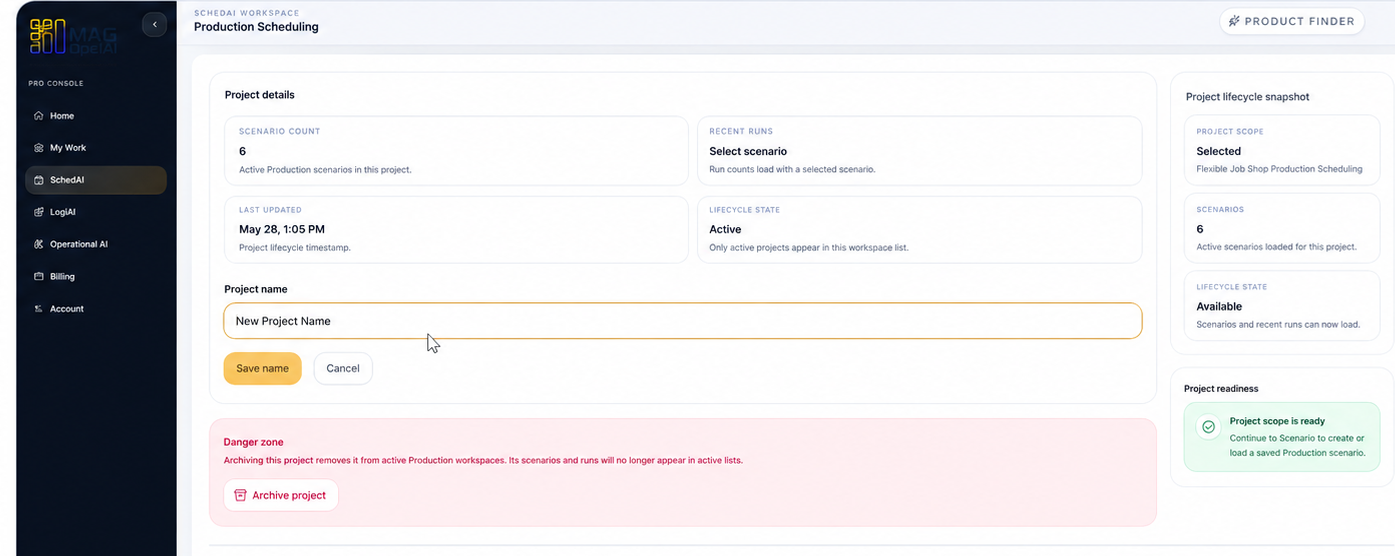
Update the project name to something meaningful and easy to identify. Click Rename project, enter the new name, and save your changes.

Step 4
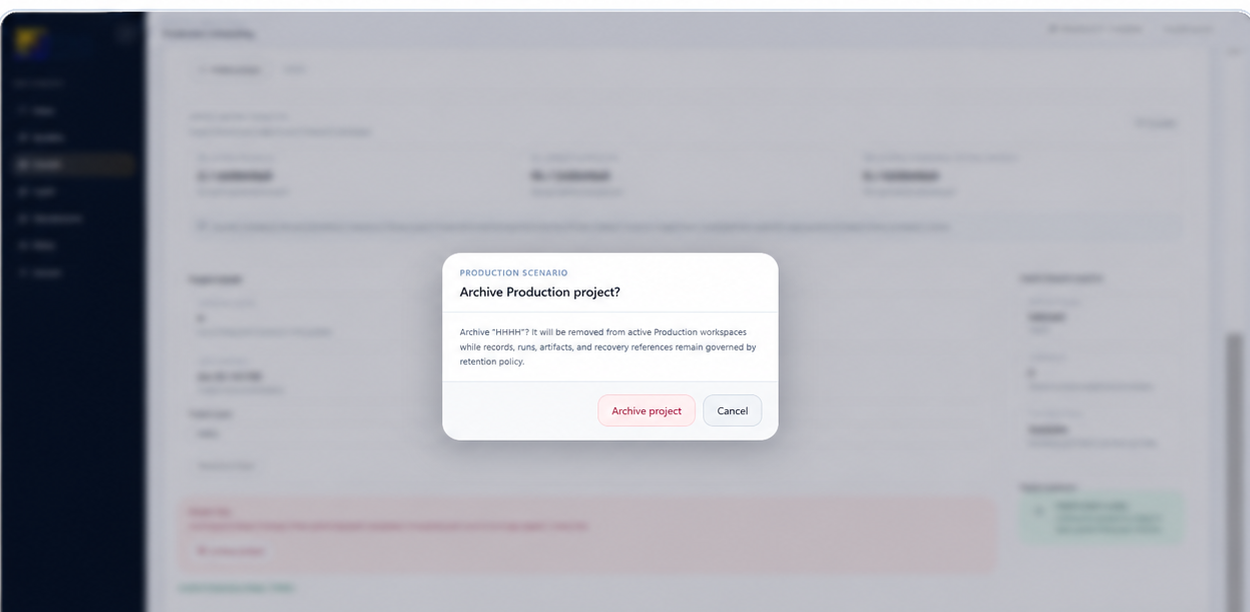
Click Archive project in the Danger zone. When the confirmation message appears, review it carefully, then confirm to archive the project.

Tips
Continue with nearby tasks in the same category.
Learn how to start a new project, choose the right workspace, name the project clearly, and continue into the setup steps for your scenario, inputs, runs, and results.
Next
Return to the full how-to library or step back to the resource hub when you want a different kind of guide.