MAG OptiAI

Data and runs How-To

How to prepare your scenario

Before you upload files or run a workflow, define the scenario you want to solve and make sure your data matches the selected MAG OptiAI workspace.

Guide details

Audience

Product users

Time

5 minutes

Category

Data and runs

What this guide covers

Before you upload files or run a workflow, define the scenario you want to solve and make sure your data matches the selected MAG OptiAI workspace.

Understand what a scenario means

Know why the scenario comes before the data

Choose one operational problem, workspace, and outcome

Open or create the project

Select saved scenarios or start fresh

Review scenario actions

Prepare data next so the workflow can run

Step by step

Understand and manage your scenario

Start by defining the operational situation you want to work on. A clear scenario helps you prepare the right data for the selected workspace.

1

Step 1

Understand what a scenario is

ScenarioBusiness question

Start by defining the operational situation you want MAG OptiAI to solve, analyze, forecast, or support. The scenario is the business question behind the data, not the project itself and not just a file upload.

A scenario comes before the data.

First decide what operational situation you want to solve. Then prepare the data that represents it.

1.1

Scenario basics

What is a scenario?

A scenario is the specific operational situation you want MAG OptiAI to solve, analyze, forecast, or support.

It is not the project itself, and it is not just a file upload. It is the business question behind the data.

Example

Inside a production scheduling project, one scenario could be: “Schedule next week’s production jobs across available machines.”
2

Step 2

Choose a clear scenario

Operational problemExpected outcome

Choose a scenario that is specific enough to guide the data you prepare. A good scenario focuses on one operational problem, one selected workspace, and one expected outcome.

1.2

Scenario quality

How to choose a clear scenario

Choose a scenario that is specific enough to guide the data you prepare. A good scenario focuses on one operational problem, one selected workspace, and one expected outcome.

1. Choose one operational problem.

Avoid mixing scheduling, routing, forecasting, scoring, extraction, and document tasks in the same scenario.

2. Make it specific.

Define the process, team, product, route, document type, or time period you want to work on.

3. Make sure data exists for it.

Your scenario should match information you can actually provide.

4. Know the expected outcome.

Decide whether you need a schedule, route plan, forecast, anomaly review, fraud score, extracted fields, or document-based answer.

Examples

Choose the scenario that fits your goal and data.

1
Schedule next week’s production jobs across available machines.
Workspace
Production Scheduling
Focus
Next week’s jobs across available machines
Outcome
Production schedule
Excellent
2
Route vehicles for late deliveries on Route R1 this month.
Workspace
Routing & VRP
Focus
Route R1, this month, late deliveries only
Outcome
Route plan
Good
3
Forecast daily demand for Product A for the next 4 weeks.
Workspace
Forecasting
Focus
Product A, next 4 weeks
Outcome
Demand forecast
Good
4
Detect unusual energy usage in Factory A during the last 30 days.
Workspace
Anomaly Detection
Focus
Factory A, last 30 days
Outcome
Anomaly review
Fair
5
Extract key fields from supplier invoices.
Workspace
ExtractAI
Focus
Supplier invoices, this month
Outcome
Extracted fields
Fair

Tip

Pick a scenario that is specific, has available data, and leads to a clear outcome. This ensures better results and faster progress.

3

Step 3

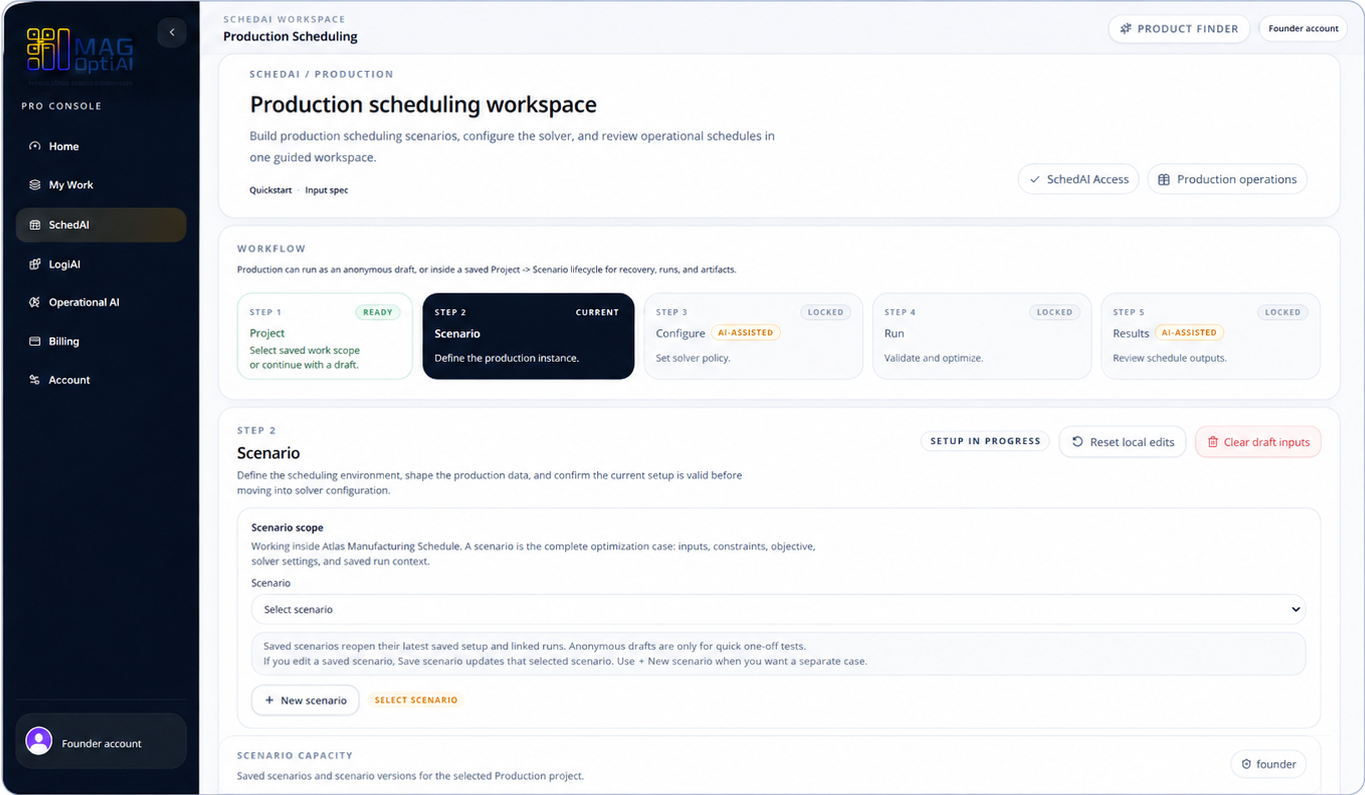
Open or create your project and go to the Scenario step

ProjectScenario setup

Start from the workspace and project that should own this work, then continue to the Scenario step. Open an existing project when the scenario belongs to ongoing work, or create a new project when this is a separate operational case.

Scenario setup inside a product workspace.
Note: Start from the project that should own the scenario, then continue to Scenario.
4

Step 4

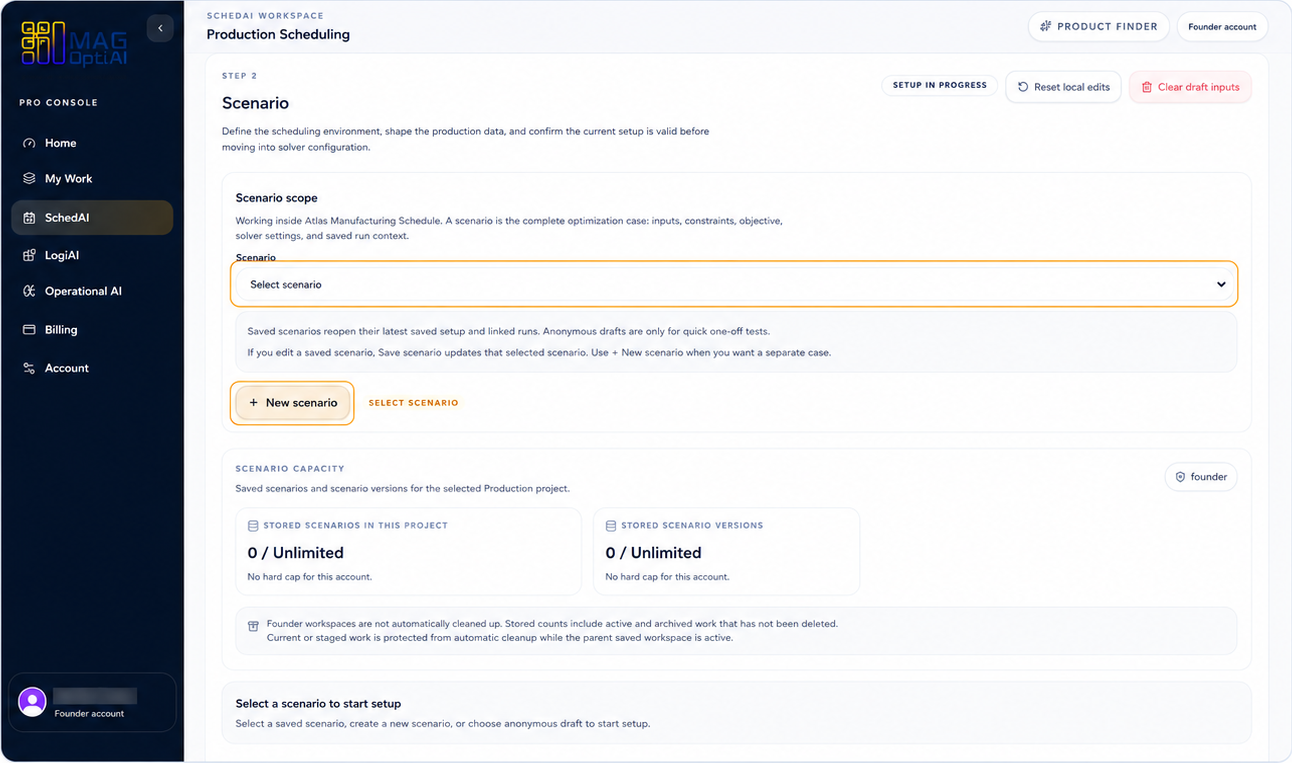
Select a saved scenario or start a new one

Saved scenarioNew scenario

Use the scenario dropdown when you already have a saved scenario. Click New scenario when you want to create a separate case for a new operational problem.

Scenario selection controls in a workspace.
Note: Use the dropdown to open a saved scenario, or click New scenario to create a new one.
5

Step 5

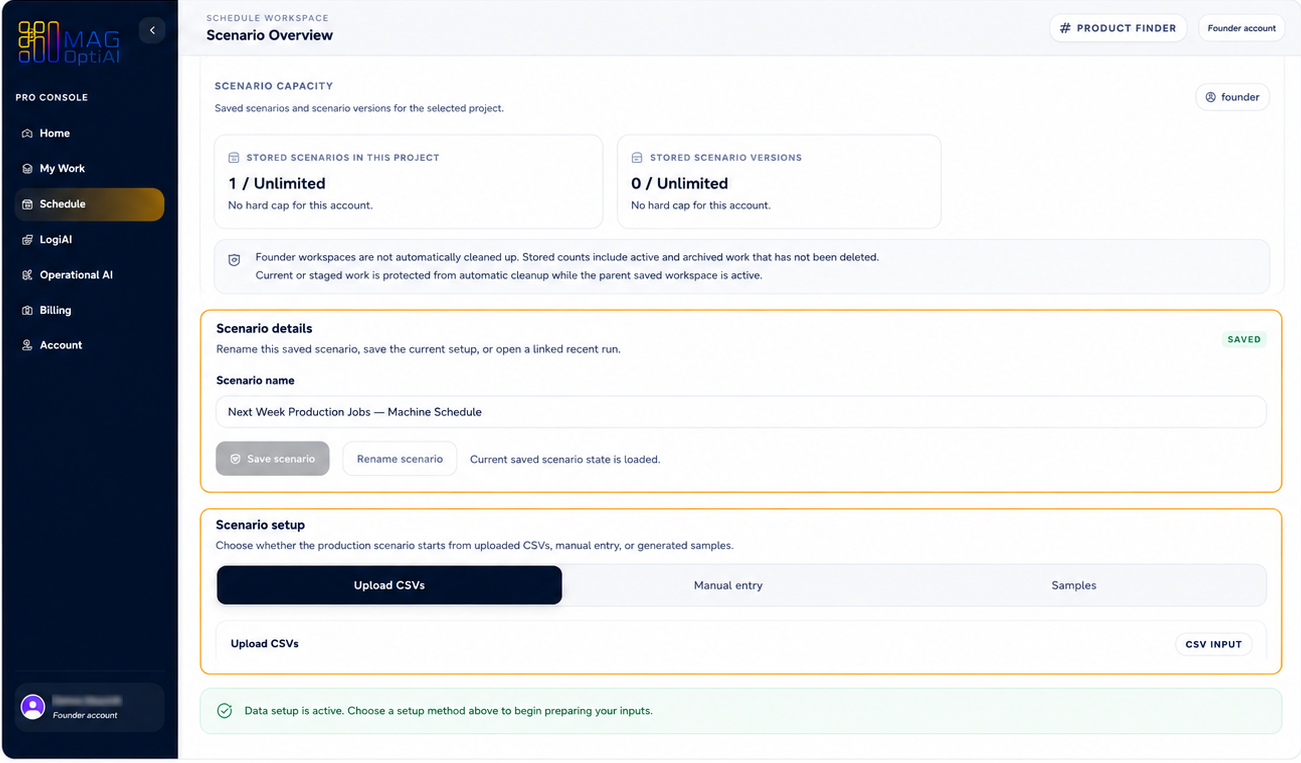
Review the scenario and start data setup

Scenario reviewData setup

After the scenario is created or selected, review the scenario details to make sure you are working inside the right context. Then continue into Data setup.

Scenario overview with data setup controls.
Note: Review the scenario details first, then choose how you want to provide the data.
6

Step 6

Understand scenario actions

Clear scenarioArchive scenario

Before changing a scenario, choose whether you want to reset the current setup or remove the scenario from active use. Clear scenario keeps the scenario record but clears current setup and result state. Archive scenario removes the scenario from active lists while retaining saved records and history.

Understand scenario actions

Before changing a scenario, choose whether you want to reset the current setup or remove the scenario from active use.

Clear scenario

Start over inside the same scenario.

Production scenario

Clear scenario?

Start over inside the same scenario.

CancelClear scenario

Clears the current setup data, results, AI Explain, and What-if state from the workspace. The scenario name stays, and any previously saved scenario remains unchanged unless you save again.

Keeps:
  • Scenario name
  • Saved scenario record
Clears:
  • -Current setup data
  • -Results
  • -AI Explain / What-if state

Archive scenario

Remove the scenario from active use.

Production scenario

Archive scenario?

Remove the scenario from active use.

CancelArchive scenario

Removes the scenario from the active scenario list. Previous saved records, runs, artifacts, and recovery references are retained according to retention policy.

Keeps:
  • Saved records
  • Previous runs
  • Artifacts and history
Removes from:
  • -Active scenario list

Note: Archive scenario does not save unsaved changes. Save your scenario first if you want to keep the latest setup.

Note: Archive scenario does not save unsaved changes. Save your scenario first if you want to keep the latest setup.

Tips

A scenario comes before the data because it defines what problem the data belongs to.
Use clear scenario names that include the location, period, customer, route, product, document set, or planning cycle.
Avoid mixing scheduling, routing, forecasting, scoring, extraction, and document tasks in the same scenario.
Archive old scenarios instead of reusing them for unrelated work.

Related how-to guides

Continue with nearby tasks in the same category.

How to prepare and upload your data

Use this checklist to prepare your data before moving to configuration. Open the input spec, match the required format, upload your files, and confirm the workspace is ready.

How to read validation errors

Understand what validation messages mean, where to find them, and how to fix your data or setup before continuing in MAG OptiAI Pro Console.

How to configure and run optimization or scoring

Review your configuration, choose the right solver or scoring settings, run the process, and check the results inside the MAG OptiAI Pro Console.

Next

Keep moving through MAG OptiAI resources

Return to the full how-to library or step back to the resource hub when you want a different kind of guide.