MAG OptiAI

Billing How-To

How to request product beta access

Request a manually reviewed 14-day beta for one MAG OptiAI product and track the request from Billing.

Guide details

Audience

Workspace owners & admins

Time

3 minutes

Category

Billing

What this guide covers

This guide explains the request-only beta path. A request applies to one product, is reviewed manually, and does not change your account type or access to other products.

Open Billing and choose the product you need to evaluate

Describe the evaluation and submit one request

Track the decision and open an approved workspace

Understand that access is product-specific and time-limited

Step by step

Request beta access step by step

Use Billing to select a product, provide enough context for review, and track the request through its lifecycle.

1

Step 1

Open Billing and choose one product

BillingProduct-specificRequest beta

Open Billing from the Pro Console sidebar, find the product you want to evaluate, and select Request beta. Each request and approval applies only to that product.

1

Choose an eligible product

Select Request beta access on the product you are ready to evaluate.
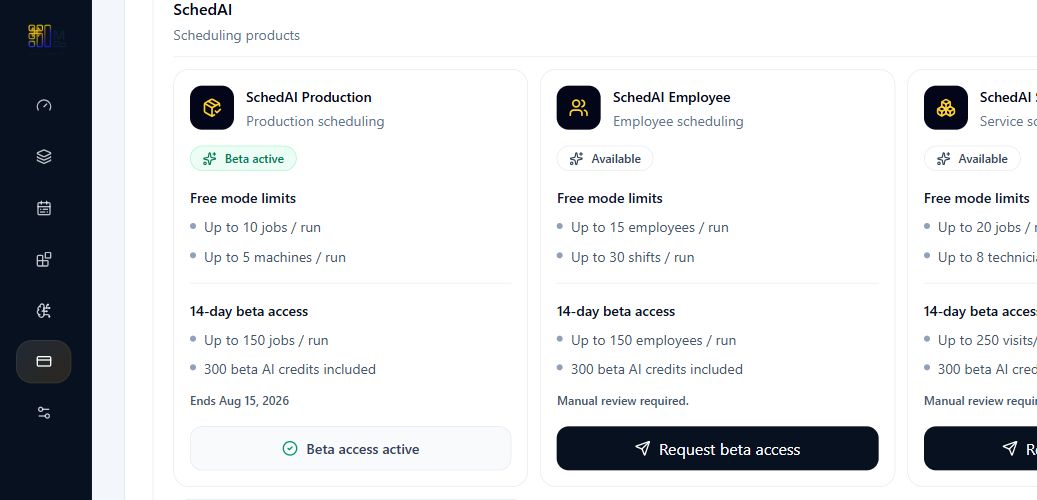
SchedAI beta catalog showing one active beta product and Request beta access actions for eligible products.
2

Step 2

Complete and submit the request

Use caseSuccess criteriaSubmit

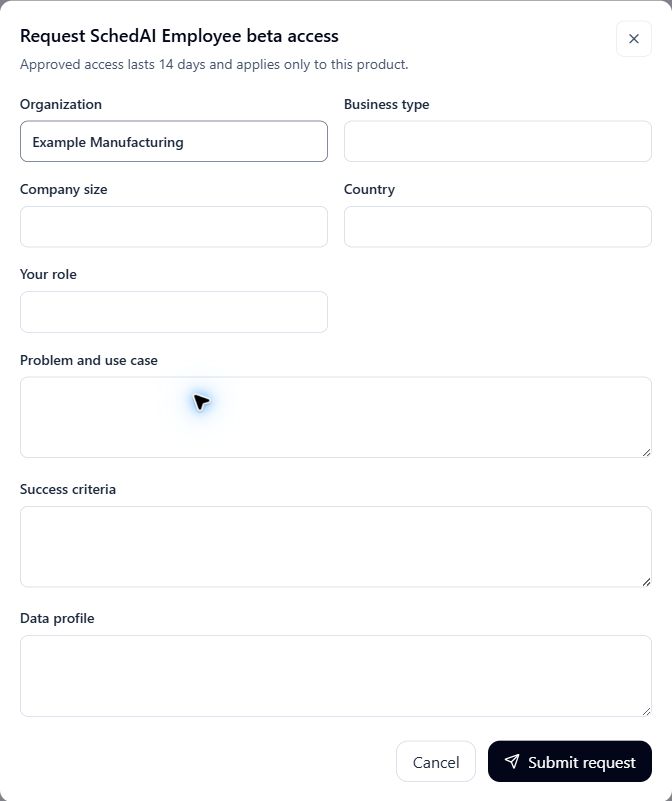
Enter your organization, business context, intended use case, success criteria, and expected data profile. Review the details, then submit the request for manual review.

1

Describe the evaluation

Complete the organization, use case, success criteria, and data profile fields.

2

Send it for review

Submit only after the evaluation details are complete.

Product beta request form with the evaluation details required before submission.
3

Step 3

Track the decision and open approved access

Request status14-day accessOpen workspace

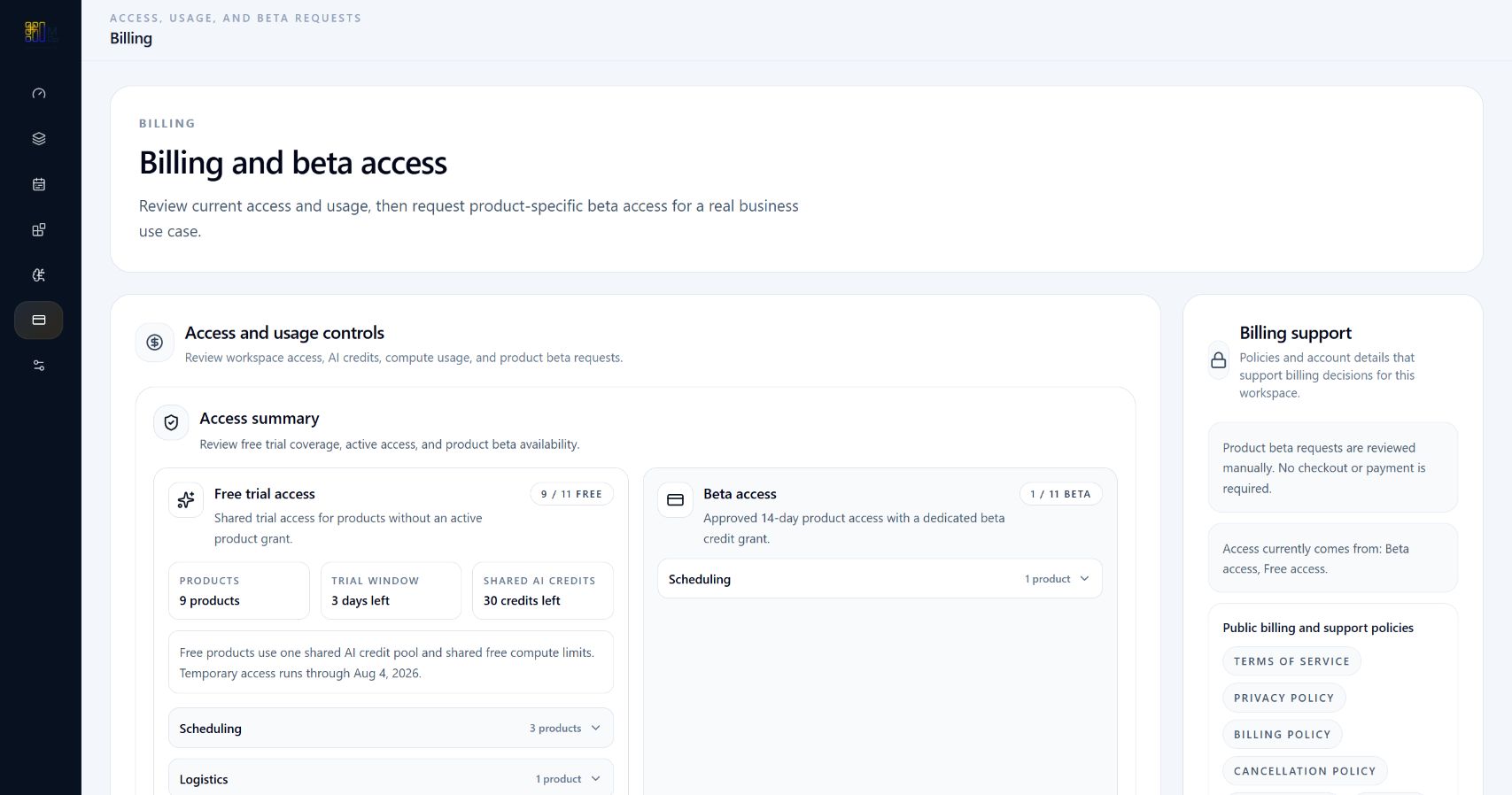
Return to Billing to follow the request status. If approved, the product card shows the 14-day access window and opens that product workspace. Pending, rejected, and expired requests remain visible so you know what happened and whether another product can be requested.

1

Approved product access

Use the Beta access panel to confirm the approved product and its active access state.

Billing overview showing an active approved product beta and its access status.

Tips

Request only the product you are ready to evaluate.
Use concrete success criteria so the review has enough context.
Beta access and AI credits expire with the approved product window.
A beta approval is not a paid subscription and does not unlock other products.

Related how-to guides

Continue with nearby tasks in the same category.

Understand AI Credits During Beta

Learn how free and approved product-beta credits are allocated, used, and limited during the request-only beta.

Understand Compute Usage

Learn how compute runs and runtime limits work, how to review usage across daily, weekly, and monthly windows, and what to do when you need more compute capacity.

Next

Keep moving through MAG OptiAI resources

Return to the full how-to library or step back to the resource hub when you want a different kind of guide.