
MAG OptiAI

Billing How-To

Understand Compute Usage

Learn how compute runs and runtime limits work, how to review usage across daily, weekly, and monthly windows, and what to do when you need more compute capacity.

Guide details

Audience

Workspace admins & users

Time

5 minutes

Category

Billing

What this guide covers

This guide explains how compute usage works in the Pro Console. You will learn how compute limits are applied, how to check your usage across different windows, and what to do when you reach a limit.

Understand what compute usage includes

Learn how compute limits are set and applied

Check your usage for runs, runtime, and active runs

Review usage across daily, weekly, and monthly windows

Know what happens when you reach a compute limit

Learn what to do if you need more compute capacity

Billing & usage how-to

What is compute usage?

Compute usage measures the processing capacity consumed when you run optimization, scheduling, routing, forecasting, or other compute-based operations in the Pro Console.

Good to know

Your available compute limits depend on the compute pool you select. Free-access products share the Free compute pool, while paid products have their own usage view.

Compute usage includes four key components:

Runs

The number of compute operations you start.

Runtime

The total processing time consumed by your runs.

Active runs

The number of runs that can be queued or processed at the same time.

Per-run limit

The maximum processing time allowed for a single run.

Step by step

How to check your compute usage

Use these steps to open Compute usage, choose the pool you want to review, read the current usage summary, and check capacity across each usage window.

1

Step 1

Open Compute Usage

Compute usageBilling

Open Billing from the left navigation, find the Compute usage section, and expand it if needed to view the compute usage dashboard.

1

Open Billing

Use the left sidebar to open Billing and access subscription and usage controls.

2

Find Compute usage

Locate the Compute usage section in the Billing page.

3

Open the section

Expand the section to view the dashboard and continue.
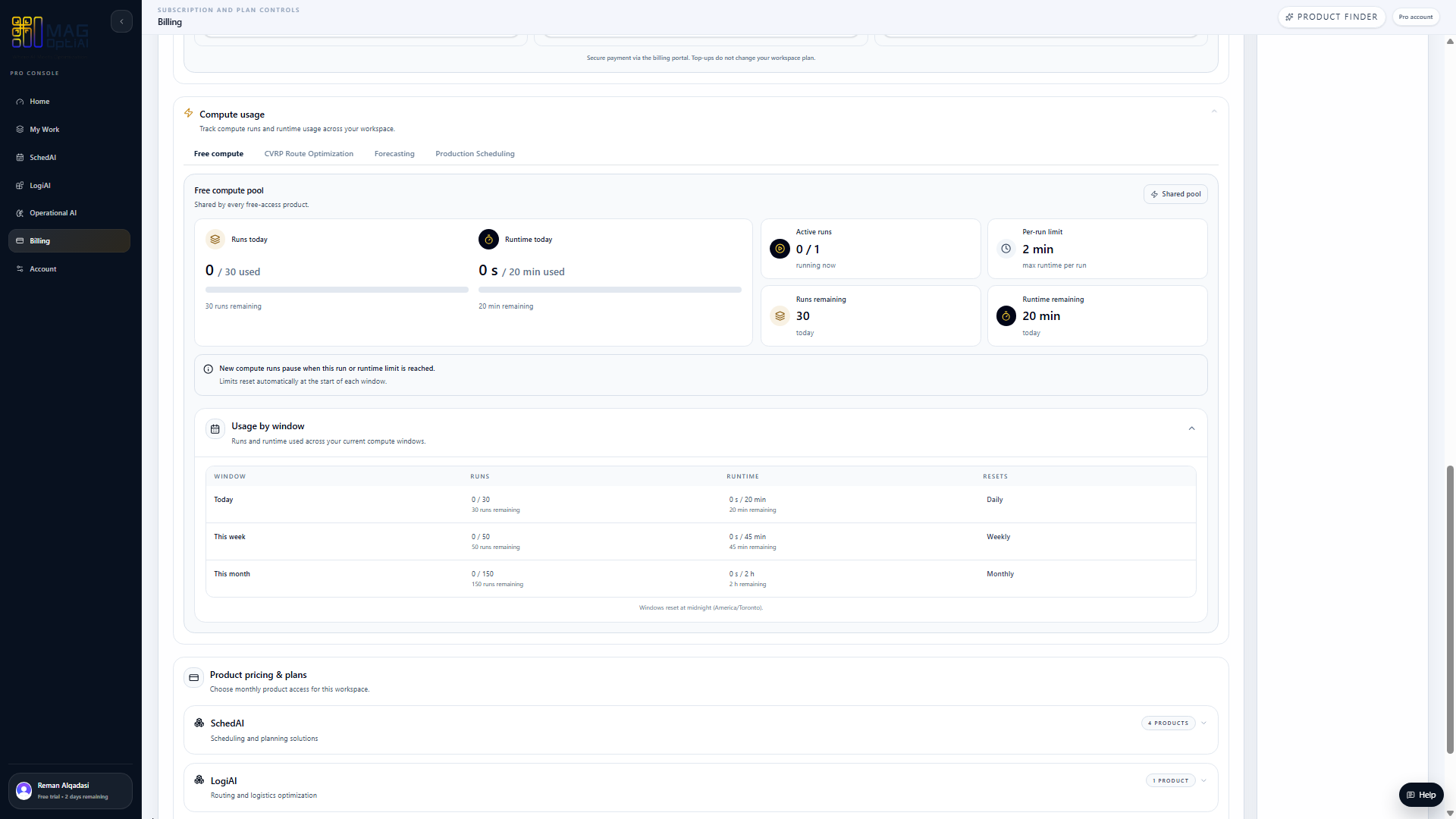
Billing page with Compute usage expanded and its dashboard visible.
Important: Compute usage is separate from AI credits. Use this section to review runs, runtime, and usage windows for your selected compute pool.
2

Path A / Step 2

Choose the compute pool you want to review

Compute poolProduct tabs

Use the tabs at the top of the Compute usage section to choose the compute pool or product you want to review.

1

Choose a compute pool

Select Free compute or a paid-product tab to review that pool's usage.

Compute usage product tabs used to choose a free or paid-product compute pool.
Good to know: The tabs you see depend on the products available in your workspace. They may be different from other users based on the products they have access to.Tip: The Free compute pool is shared by all free-access products. Each paid product has its own dedicated compute usage view.
3

Step 3

Review your current compute usage

RunsRuntimeActive runsPer-run limit

Review the current usage summary to understand how many runs and how much runtime have been used, what capacity is available now, and how much remains in the selected compute pool.

1

Runs today

Compute runs used in the current daily window.

2

Runtime today

Runtime consumed in the current daily window.

3

Active runs

Runs currently processing compared with allowed concurrency.

4

Per-run limit

Maximum runtime allowed for a single run.

5

Runs remaining

Runs still available today.

6

Runtime remaining

Runtime still available today.

Compute usage summary cards for runs, runtime, active runs, per-run limit, and remaining capacity.
Important: These cards show the current usage summary for the compute pool you selected. The exact numbers change based on your product view and recent usage.
4

Path A / Step 4

Review usage by window

Usage windowRunsRuntimeResets

Use the Usage by window section to review compute usage across the current daily, weekly, and monthly windows.

1

Usage window

Review usage for Today, This week, and This month.

2

Runs

See runs used and remaining in each window.

3

Runtime

See runtime used and remaining in each window.

4

Capacity availability

Check when each rolling window resets and capacity returns.

Usage by window table with daily, weekly, and monthly runs, runtime, and reset periods.
Good to know: You must remain within all three usage windows. Reaching the run or runtime limit in any window pauses new compute runs, even when capacity remains in another window. Capacity becomes available automatically as older usage moves outside the applicable window.Example: You may still have monthly capacity available but be unable to start a new run because the daily limit has been reached.
5

Step 5

What happens when you reach a compute limit?

Usage-window limitActive runPer-run limitMore capacity

When you reach an applicable compute limit, new runs may pause. The action you need to take depends on which limit was reached.

Compute limit reached

New runs may pause based on the limit that was reached.

Which limit was reached?
1

Usage-window

A run or runtime limit was reached within a daily, weekly, or monthly window.

What happens

New runs pause until capacity becomes available again.

What to do

Wait for capacity to return automatically as older usage moves outside the applicable window.

Windows: 24 hours · 7 days · 30 days
2

Active run / Per-run

Active-run slots are all in use or a run exceeded the per-run limit.

What happens

You cannot start a new run now, or the current run cannot continue.

What to do

Wait for a current run to finish, or reduce the requested runtime and try again.

Active runs & per-run runtime limits
3

Regular higher usage

You regularly reach limits with your current plan.

What happens

You may experience interruptions when running multiple or long computations.

What to do

Contact Customer Care to discuss a custom compute plan that fits your needs.

More runs · More runtime · More capacity
Important: AI credit top-ups do not increase compute runs, runtime, active-run capacity, or per-run limits.

Tips

Available compute limits depend on the compute pool you select.
Free-access products share the Free compute pool, while paid products have their own usage view.
Usage-window capacity returns automatically as older usage moves outside the applicable window.
Contact Customer Care when your regular workload requires more compute capacity.

Related how-to guides

Continue with nearby tasks in the same category.

How to request product beta access

Request a manually reviewed 14-day beta for one MAG OptiAI product and track the request from Billing.

Understand AI Credits During Beta

Learn how free and approved product-beta credits are allocated, used, and limited during the request-only beta.

Next

Keep moving through MAG OptiAI resources

Return to the full how-to library or step back to the resource hub when you want a different kind of guide.