MAG OptiAI

Data and runs How-To

How to configure and run optimization or scoring

Review your configuration, choose the right solver or scoring settings, run the process, and check the results inside the MAG OptiAI Pro Console.

Guide details

Audience

Product users

Time

4 minutes

Category

Data and runs

What this guide covers

Review your configuration, choose the right solver or scoring settings, run the process, and check the results inside the MAG OptiAI Pro Console.

Understand the difference between optimization and scoring

Review configuration before starting a run

Confirm solver, objective, or scoring settings

Check setup readiness before running

Start Run Optimization or Run Scoring and wait for results

Step by step

Follow the task path

Each step gives you the action, the reason it matters, and the visual state to look for before continuing.

1

Step 1

Know which run type you are using

OptimizationScoring

MAG OptiAI uses optimization for scheduling and routing workspaces, and scoring for operational AI workflows such as forecasting, anomaly detection, fraud scoring, extraction, or DocAI.

Before you start

Optimization vs scoring

MAG OptiAI uses two types of runs depending on the product workspace you selected.

Run Optimization

Used for: SchedAI and LogiAI

Build the best schedule, route, or plan based on constraints, objectives, capacities, time windows, and priorities.

Examples: Production scheduling, service routing, employee shifts, academic schedules, vehicle routes.

Run Scoring

Used for: Operational AI

Evaluate, predict, detect, classify, or extract insights from your data or documents using AI workflows.

Examples: Forecasting, anomaly detection, fraud detection, ExtractAI, DocAI.

Both workflow types follow the same general process: review configuration, run the process, and check the results.
2

Step 2

Review the configuration before running

Run setupAI Configuration

Check solver, model, scoring, runtime, objective, and other configuration settings before launch. Settings vary by product, so review them carefully against the result you want to achieve.

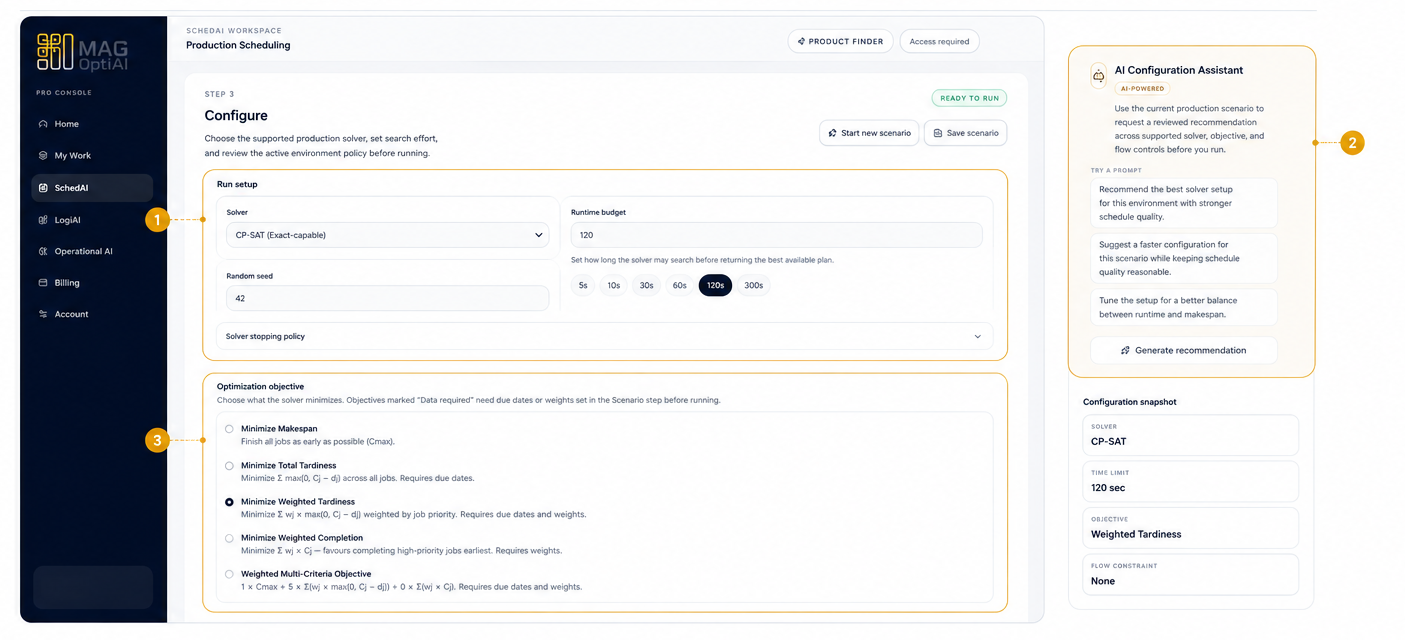
Configuration review

Review the configuration before running

Before you start optimization or scoring, review the configuration settings for your workspace. Configuration controls how the system will process your data and generate results.

Run setup

Choose the solver and set the runtime budget for your run.

AI Configuration Assistant

Use AI to get recommendations for a better configuration.

Optimization objective

Select the objective the solver should minimize or optimize.

Settings may vary by product. Review them carefully to match the result you want to achieve.

Configure step with solver settings, objective choices, runtime budget, and AI Configuration Assistant.
3

Step 3

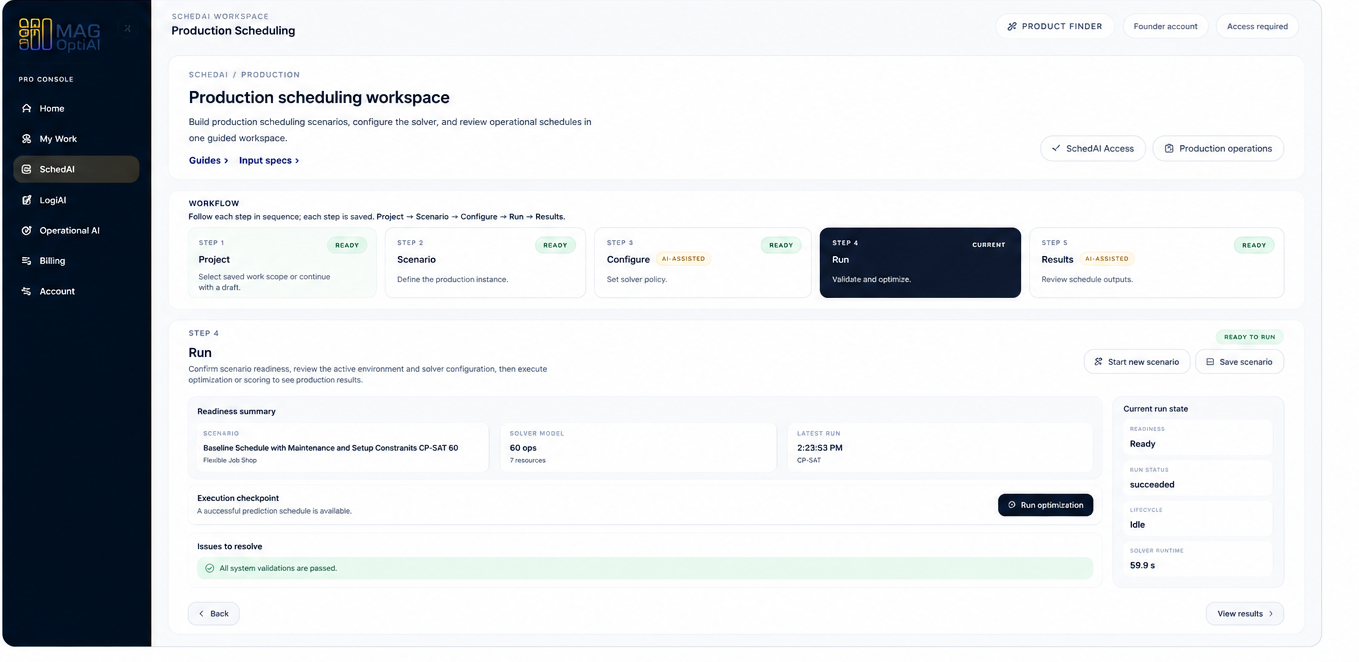
Confirm setup readiness

ReadinessRun step

Before starting, make sure Project, Scenario, and Configure steps are ready. Resolve validation issues or missing setup details before you run.

Readiness review

Confirm setup readiness

Review the workspace summary and system status to make sure everything is ready before you start optimization or scoring.

Review workflow

Make sure Project, Scenario, and Configure steps are completed.

Check status

Ensure the Run step shows Ready and no issues are blocking the run.

Verify summary

Review scenario model, solver, time limit, and last run information.

Confirm issues

Issues to resolve should be cleared before you continue.

If anything is not ready or an issue exists, resolve it before starting the run.

Run step showing readiness summary, latest run details, and Run optimization action.
4

Step 4

Start the run and wait for results

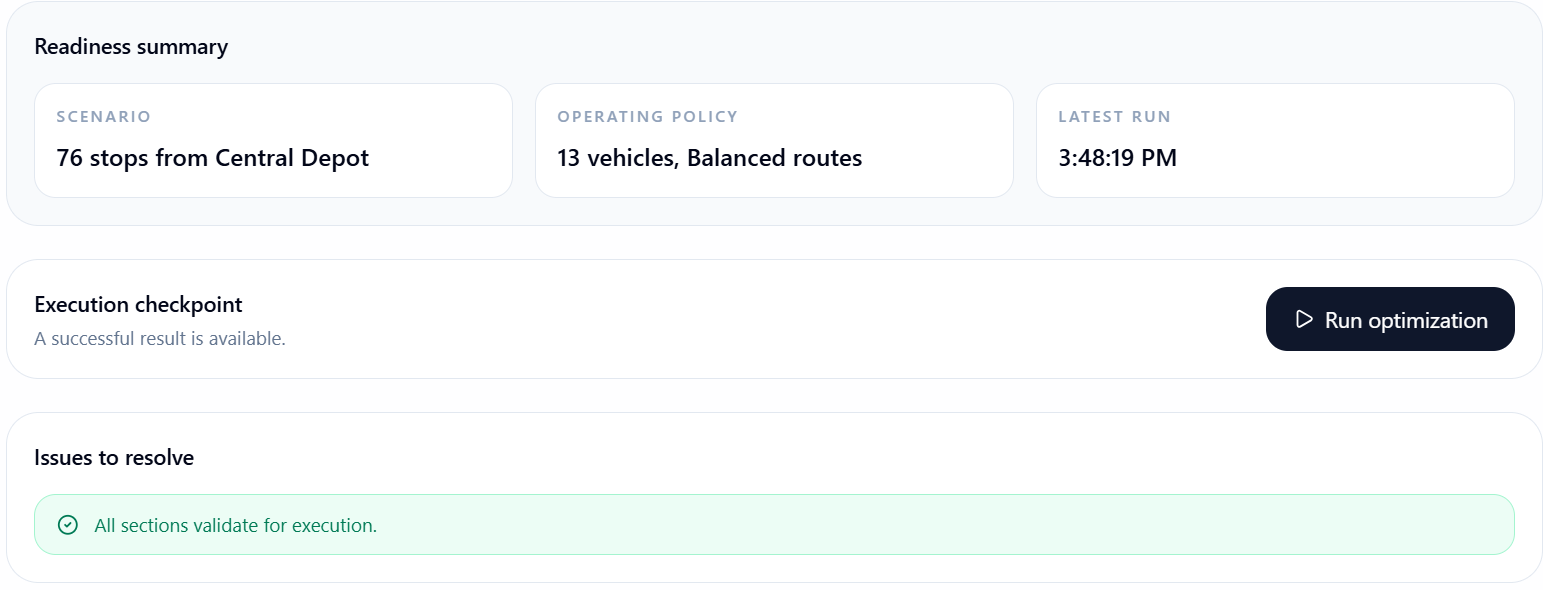
Run actionResults available

When readiness is clear, click Run optimization or Run scoring. The platform processes the run, then moves you to the Results step when results are available.

Run action

Click Run optimization or Run scoring

When the workspace is ready, start the run from the Run step. MAG OptiAI will process the workflow and then take you to the Results step when the output is available.

Readiness shows Ready.

No blocking issues remain.

The run action is enabled.

Results will open when processing finishes.

Close-up of the Run optimization action and current run state.
After you start the run, wait for processing to finish. The Results step is the next guide in the Results and Outputs section.

Tips

Optimization is typically used by SchedAI and LogiAI workspaces.
Scoring is typically used by Operational AI workflows.
Do not start a run while required setup or validation issues are still unresolved.

Related how-to guides

Continue with nearby tasks in the same category.

How to prepare your scenario

Before you upload files or run a workflow, define the scenario you want to solve and make sure your data matches the selected MAG OptiAI workspace.

How to prepare and upload your data

Use this checklist to prepare your data before moving to configuration. Open the input spec, match the required format, upload your files, and confirm the workspace is ready.

How to read validation errors

Understand what validation messages mean, where to find them, and how to fix your data or setup before continuing in MAG OptiAI Pro Console.

Next

Keep moving through MAG OptiAI resources

Return to the full how-to library or step back to the resource hub when you want a different kind of guide.