1
Step 1
Start from a saved baseline
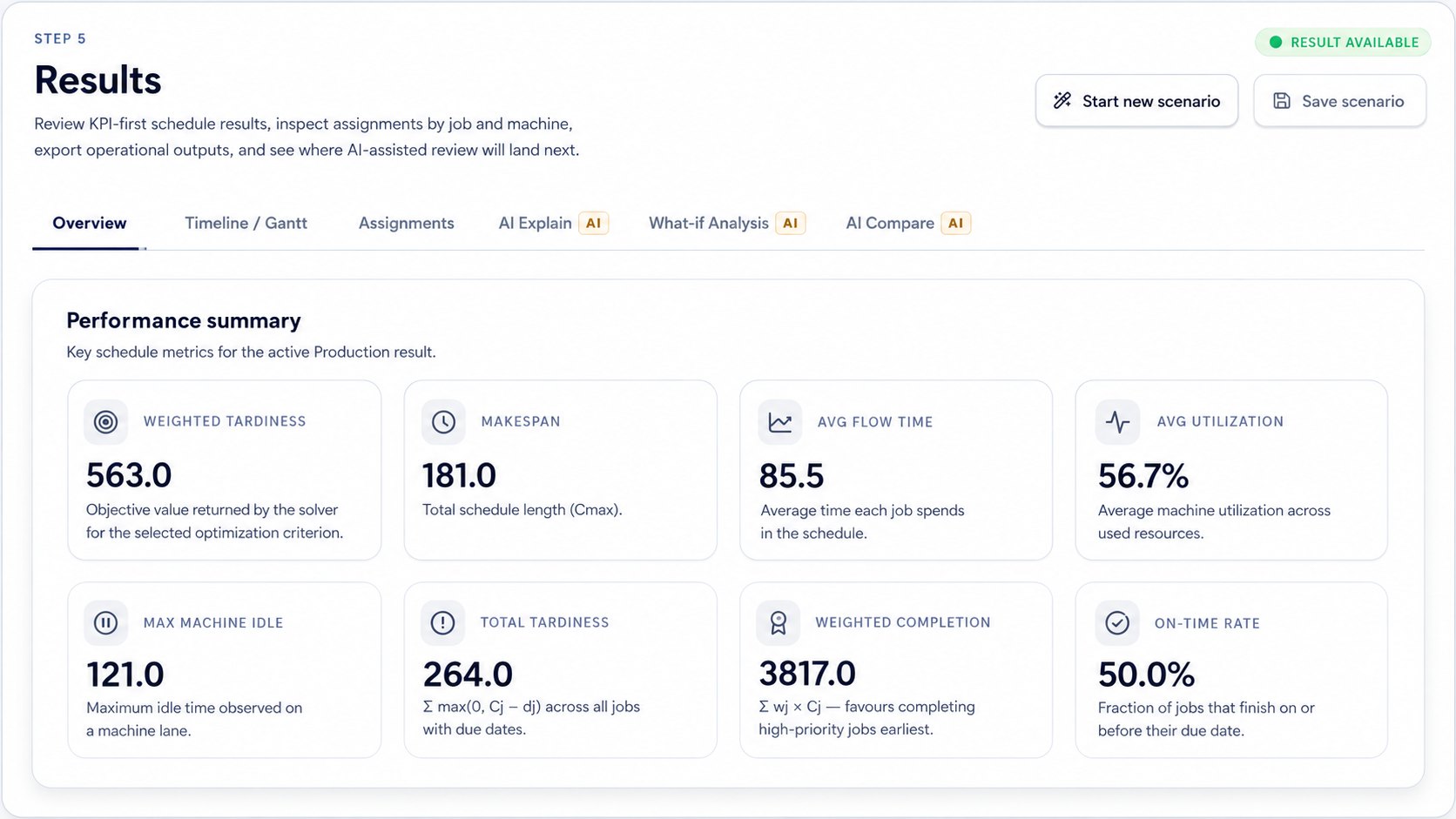
Run or save the baseline scenario so the workspace has a stable result to compare against.

AI features How-To
Create an alternative scenario, solve it, and compare the result against the baseline before deciding which plan is stronger.
Guide details
Audience
Scheduling and routing users
Time
6 minutes
Category
AI features
Create an alternative scenario, solve it, and compare the result against the baseline before deciding which plan is stronger.
Start from a saved baseline
Open What-if Analysis
Generate a controlled variant
Review the proposed change before solving
Compare baseline and variant with AI Compare
Step by step
Each step gives you the action, the reason it matters, and the visual state to look for before continuing.
Step 1
Run or save the baseline scenario so the workspace has a stable result to compare against.
Step 2
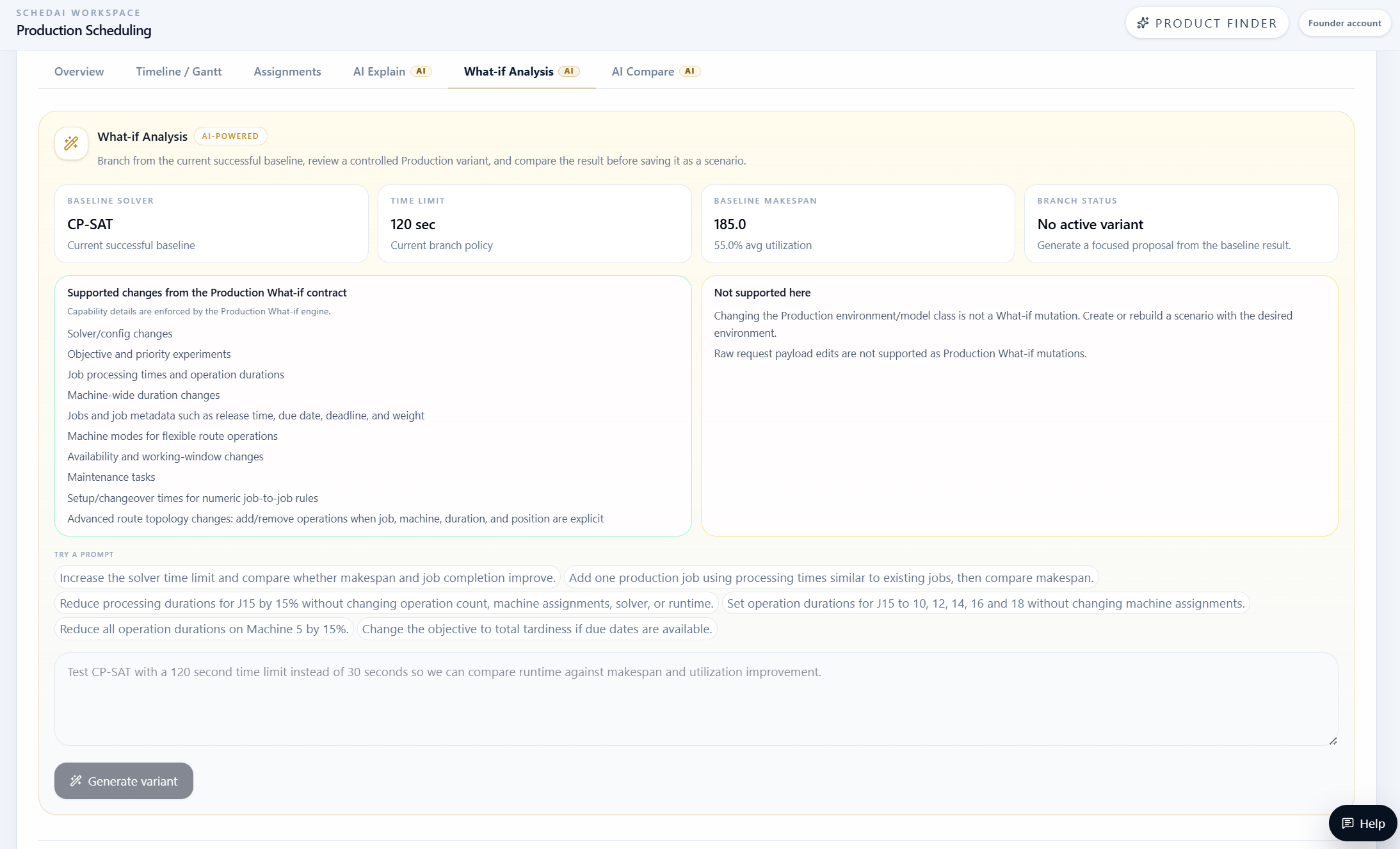
Describe a practical operational adjustment such as adding capacity, changing availability, adjusting a route, or testing a planning policy.
Step 3
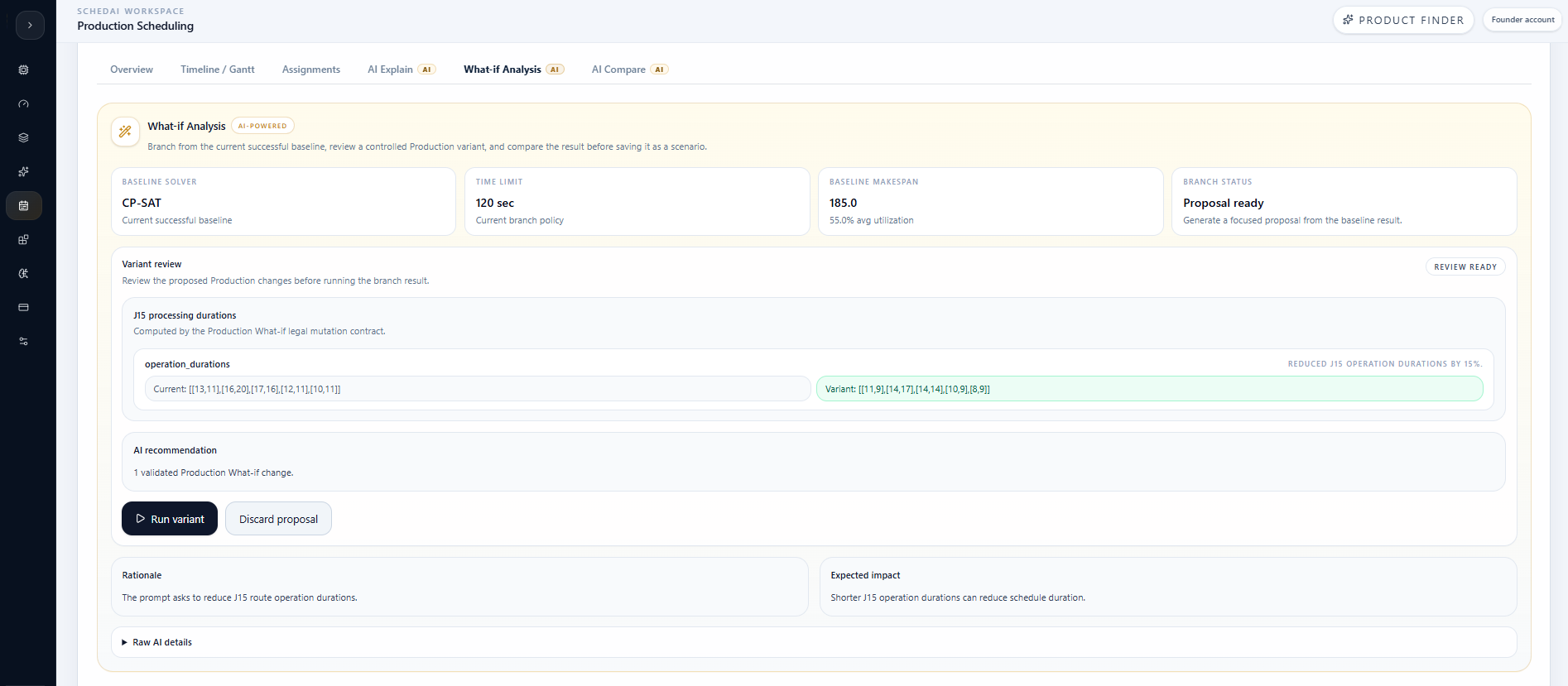
Confirm that the variant changes the intended employees, technicians, rooms, stops, capacity, or timing before solving it.
Step 4
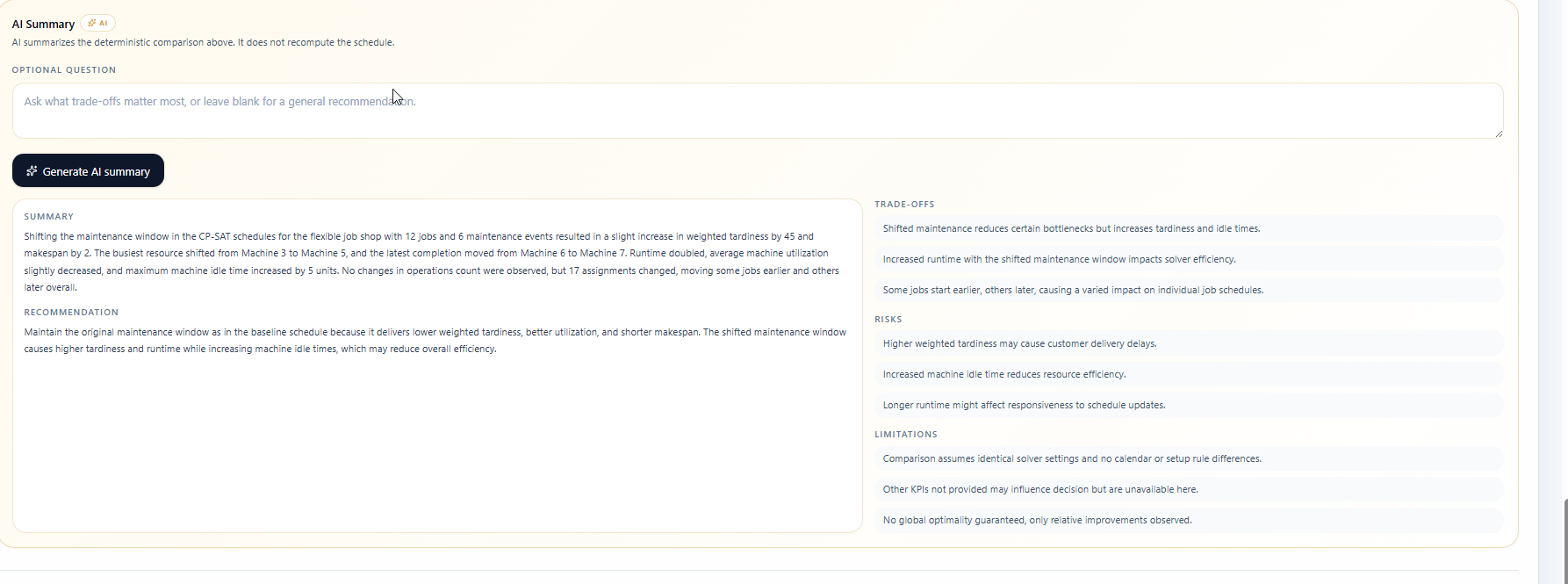
Use AI Compare or comparison views to inspect KPI movement, trade-offs, and the operational explanation before choosing a plan.
Tips
Related links
Continue with nearby tasks in the same category.
Ask focused questions about generated results so MAG OptiAI can explain KPIs, charts, schedules, routes, model outputs, or document answers using visible output.
Set up your scenario with guided assistance. MAG OptiAI helps you understand required inputs, configuration choices, and setup rules before running the model.
Generate a short summary of the current result or output so you can quickly understand key findings, risks, and next steps.
Next
Return to the full how-to library or step back to the resource hub when you want a different kind of guide.