1
Step 1
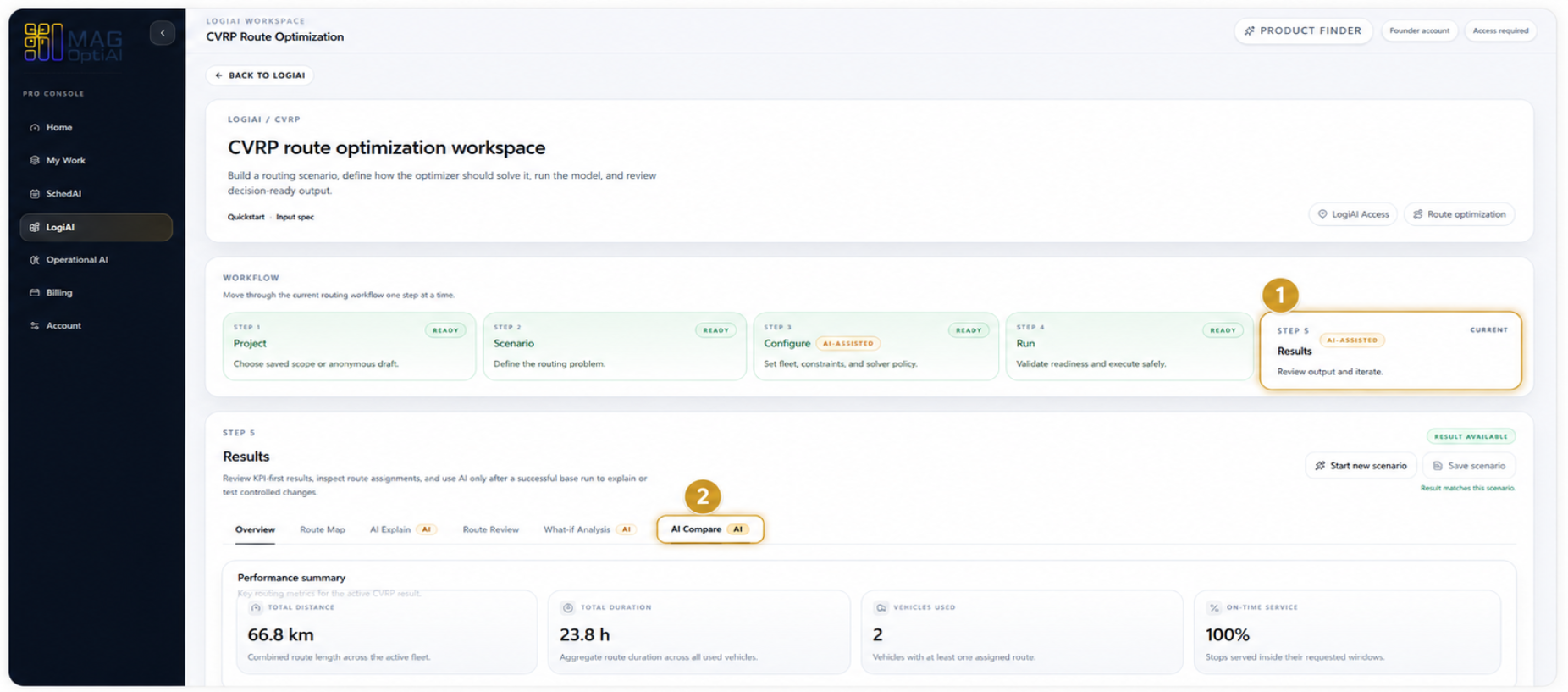
Open AI Compare from the Results page
ResultsAI Compare
Go to the Results step, then select the AI Compare tab to start comparing outputs side by side.

AI features How-To
Compare two results side by side to understand what changed between them and decide which option performs better.
Guide details
Audience
AI feature users
Time
4 minutes
Category
AI features
This guide shows you how to use AI Compare to compare two results side by side. You will learn what AI Compare is, why to use it, what you can compare, how it works, and how to read the comparison and impact.
Understand what AI Compare is for
Know why to use it
Learn what you can compare
Follow how it works
Review how to read the comparison and impact
AI Compare helps you make confident decisions by showing you exactly what changed between two results and which option performs better.
Quickly compare key metrics and KPIs side by side to understand which result delivers stronger performance.
Identify the exact differences in schedules, assignments, delays, utilization, and other important factors.
After testing a what-if scenario, compare it with your baseline to see if the change improved the outcome.
No need to open results separately or remember the differences. AI Compare highlights everything clearly for you.
Confidently decide which scenario or run to adopt, or if you need to adjust and test again.
Base your decision on facts, not assumptions, and ensure the best outcome for your operations.
Best used when
You have multiple results, what-if scenarios, or versions and need to decide which one is the best option to move forward with.
AI Compare helps you review the most important differences between two results so you can understand both performance and operational impact.
Compare metrics such as makespan, weighted tardiness, utilization, service level, cost, and other key performance indicators.
Review changes in timing, job order, delays, task flow, or route structure to see how the plan was affected.
See differences in machine assignments, vehicle routes, employee shifts, or resource allocation across results.
Compare the effect of different assumptions, priorities, limits, runtime choices, or scenario settings.
Understand how a baseline, a new run, or a what-if result differs from another version of the same case.
See what improved, what became worse, and which trade-offs matter most before choosing a result.
Helpful for
Use this view when you need to compare both the numbers and the operational changes between two results.
Step by step
Use these steps to open AI Compare, choose two comparable results, review the deterministic comparison, and generate the AI Summary when you need decision support.
Step 1
Go to the Results step, then select the AI Compare tab to start comparing outputs side by side.
Step 2
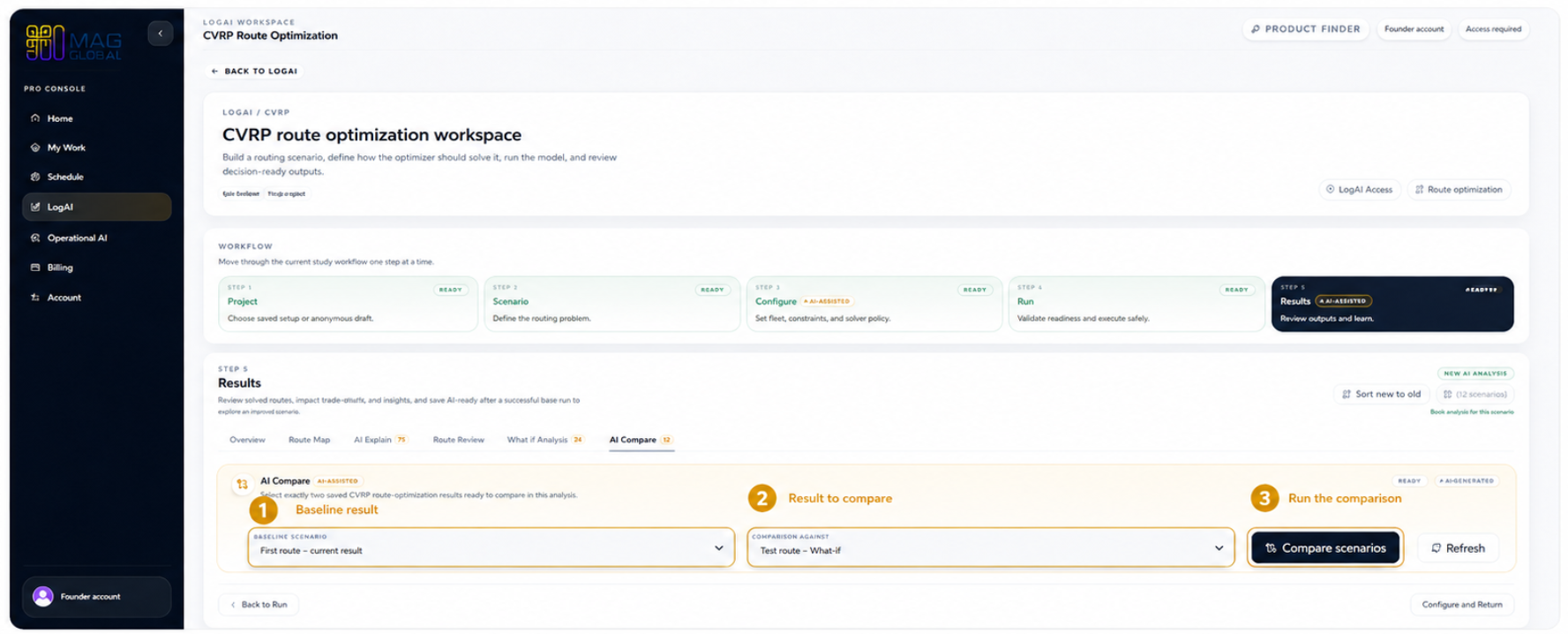
Select the two saved results you want to compare, then click Compare scenarios to run the comparison.
Step 3
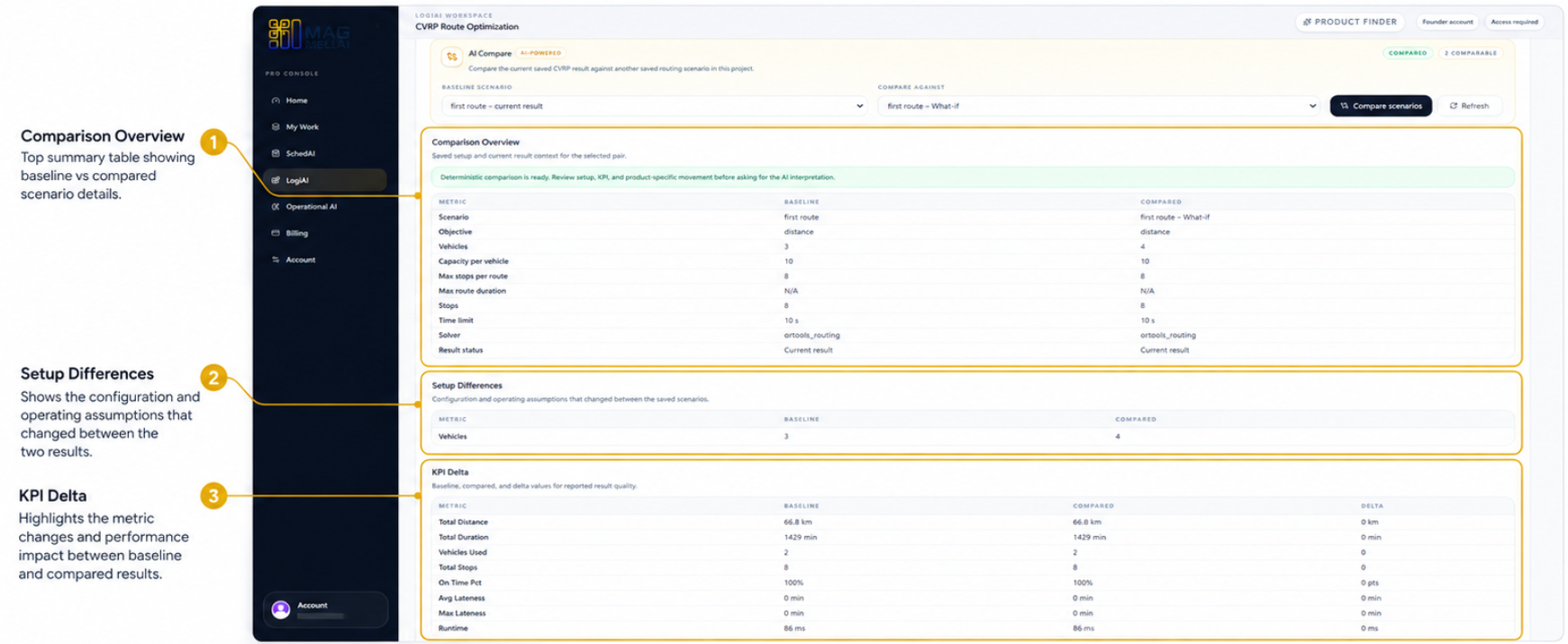
After running the comparison, review the output sections to understand setup differences, KPI changes, and operational impact between the two saved results.
Step 4
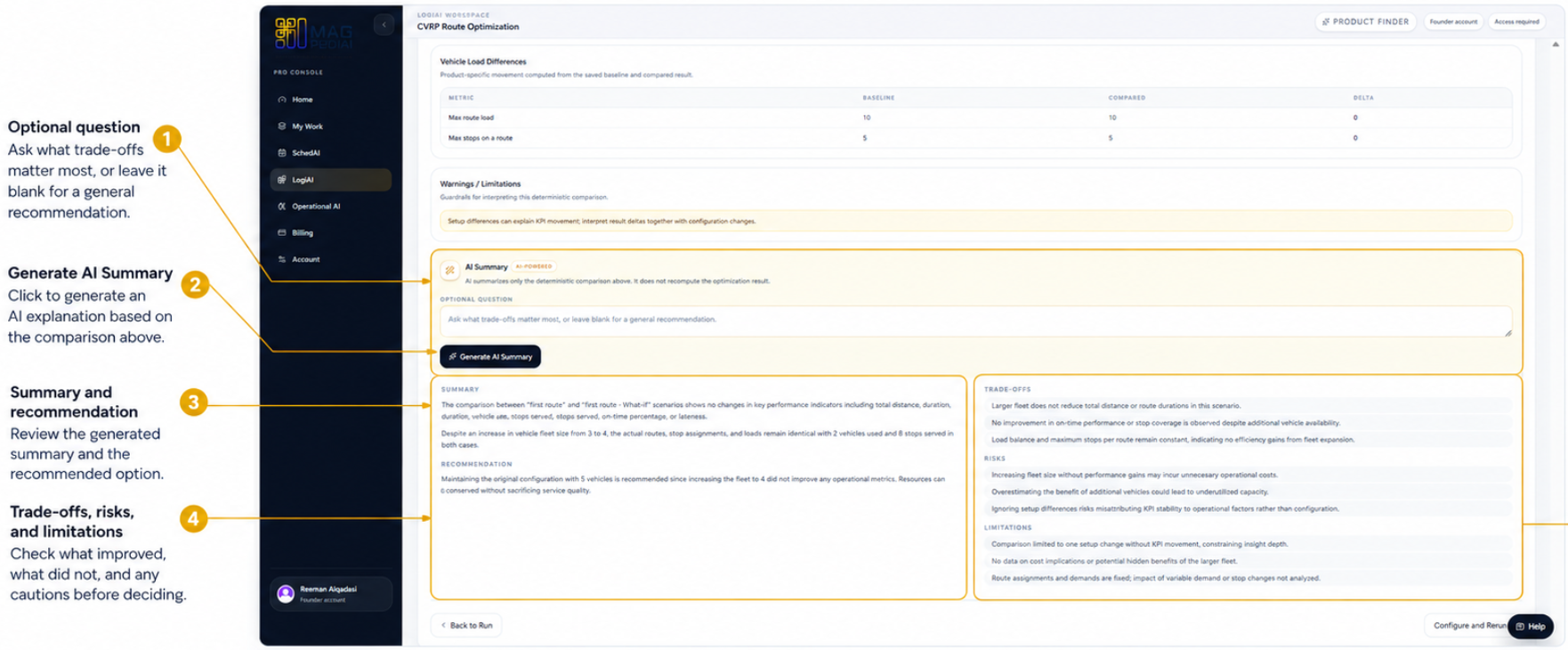
Use AI Summary to interpret the comparison. You can ask an optional question, generate the summary, then review the recommendation, trade-offs, risks, and limitations.
Tips
Continue with nearby tasks in the same category.
Ask focused questions about generated results so MAG OptiAI can explain KPIs, charts, schedules, routes, model outputs, or document answers using visible output.
This guide helps you configure a scenario with confidence. You will learn what AI Config is for, how to review required inputs, how to choose configuration options, and how to validate setup before running the model.
Test controlled alternatives by changing selected assumptions, constraints, or inputs, then rerun the scenario to see how the outcome changes.
Next
Return to the full how-to library or step back to the resource hub when you want a different kind of guide.