1
Step 1
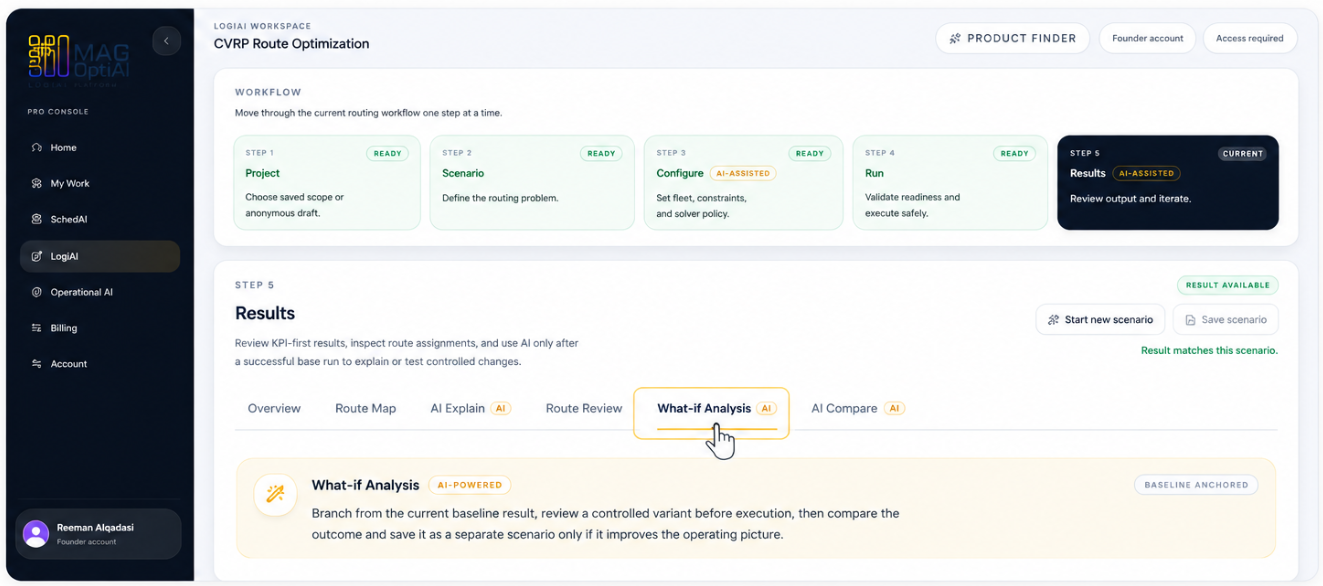
Open the What-if Analysis tab
ResultsBaseline
Start from the Results page of your current scenario. Click the What-if Analysis tab to open the workspace and begin testing alternative changes based on your baseline.
AI features How-To
Test controlled alternatives by changing selected assumptions, constraints, or inputs, then rerun the scenario to see how the outcome changes.
Guide details
Audience
AI feature users
Time
4 minutes
Category
AI features
This guide shows you how to use What-if Analysis after results are generated. You will learn what What-if Analysis is, why to use it, what you can test, how it works, and how to read the impact of different alternatives.
Understand what What-if Analysis is for
Know why to use it
Learn what you can test
Follow how it works
Review how to read the impact
Why use What-if?
Use What-if Analysis to test possible decisions before applying them in real operations. It helps you understand how changes in timing, demand, priorities, or capacity may affect the final outcome.
Evaluate alternative choices safely before implementing them in real operations.
See how timing, demand, priorities, or capacity changes affect the final result.
Compare different options side by side using consistent KPIs and outputs.
Make more confident decisions with evidence from scenario results.
Find better trade-offs to improve service, efficiency, cost, and resource use.
Use results, not assumptions, to choose the best path forward.
What can you test?
What-if Analysis lets you test changes to assumptions, constraints, and inputs across optimization scenarios.
You can explore how changes affect schedules, routes, workloads, resource usage, priorities, and overall performance before deciding which plan to use.
Available What-if options depend on the selected product and the type of optimization scenario you are running.
Test changes related to timing, availability, operating windows, or when work can start and finish.
Examples
Test how the plan responds when the amount of work, demand, or required activity changes.
Examples
Adjust priorities, rules, or constraints to see how they influence the optimized outcome.
Examples
Test the impact of adding, removing, or limiting the resources available to the optimization model.
Examples
Explore different scenarios and compare the results to choose the plan that performs best for your operation.
Run the current scenario.
Adjust inputs, constraints, or settings.
Run the model again with the changes.
Analyze and compare the results side by side.
Step by step
Use these steps to start from a baseline result, describe one controlled change, review the proposed variant, run it, and compare the outcome before deciding what to keep.
Step 1
Start from the Results page of your current scenario. Click the What-if Analysis tab to open the workspace and begin testing alternative changes based on your baseline.
Step 2
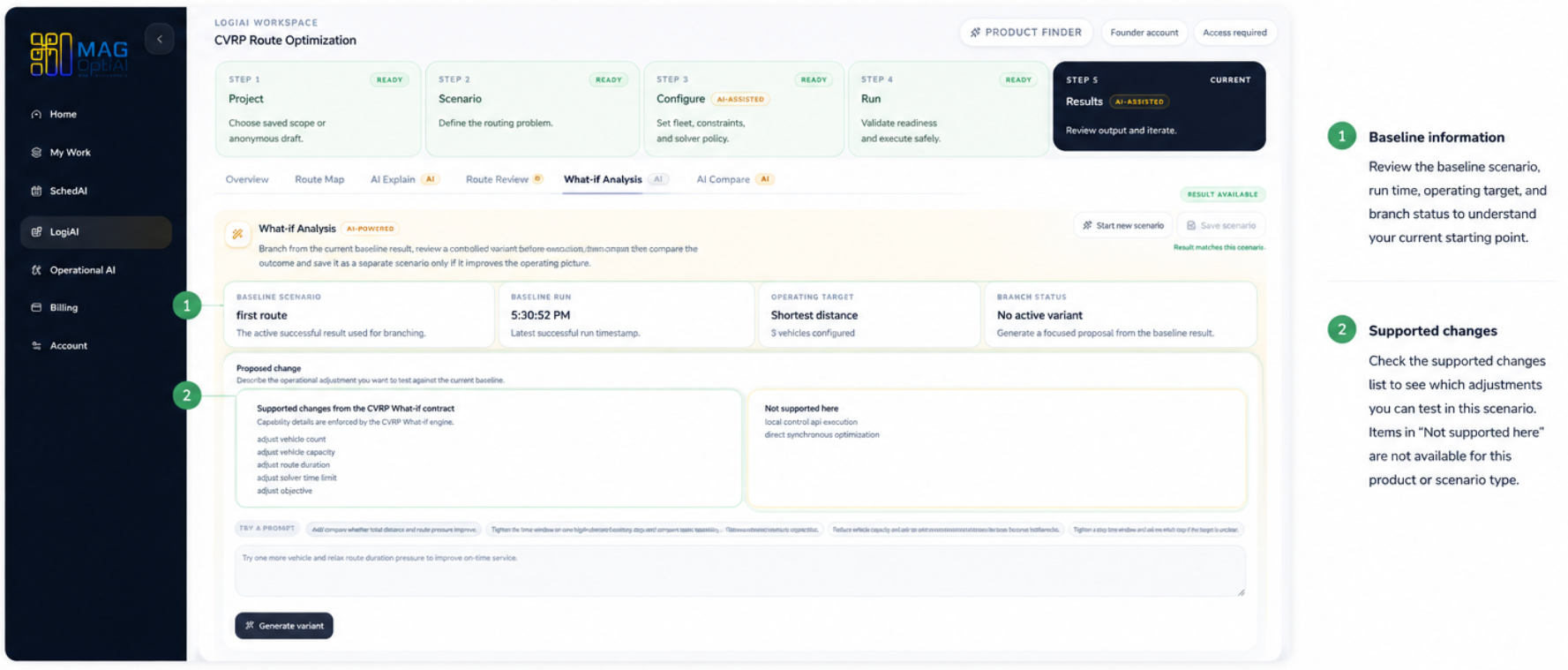
After opening the What-if Analysis workspace, review the baseline information at the top of the page to understand the current scenario. Then check the supported changes section to see what types of adjustments the system can propose or support for this product.
Step 3
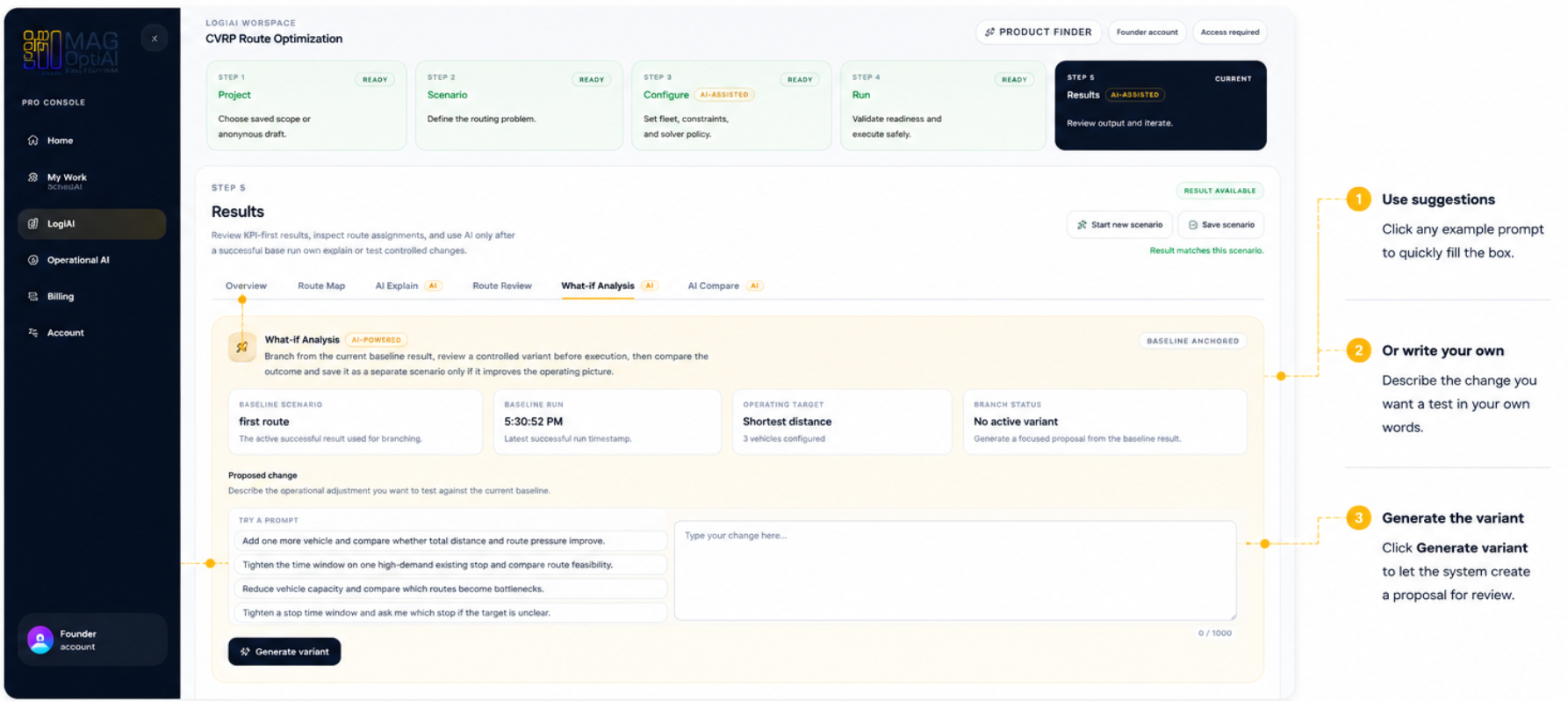
Describe the change you want to test against the current baseline. You can type your own request in the prompt box or use one of the suggested examples to get started. Then click Generate variant.
Step 4
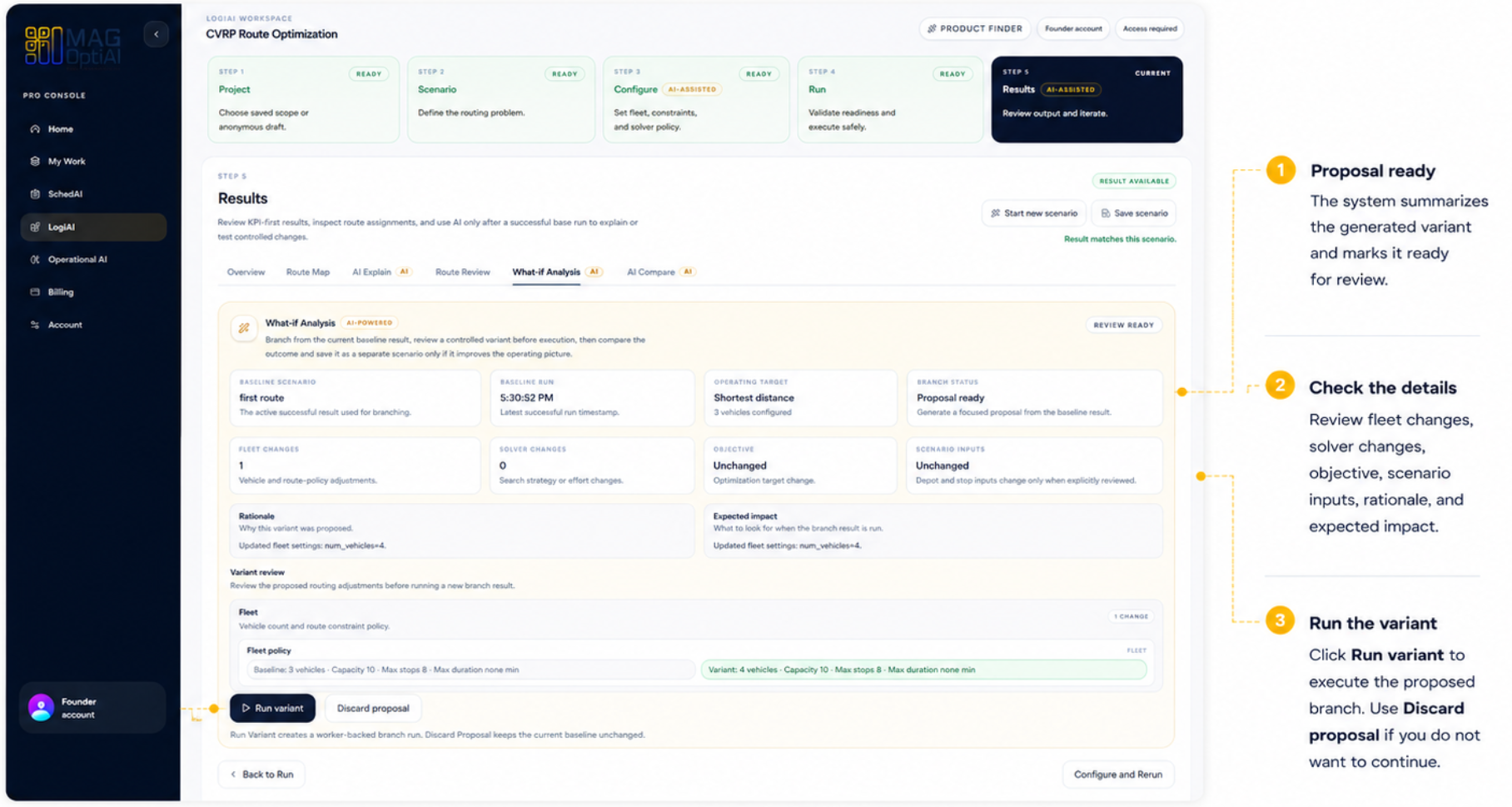
Review the generated proposal before execution. Check the proposed changes, rationale, expected impact, and variant review. When everything looks right, click Run variant to execute the new branch result.
Step 5
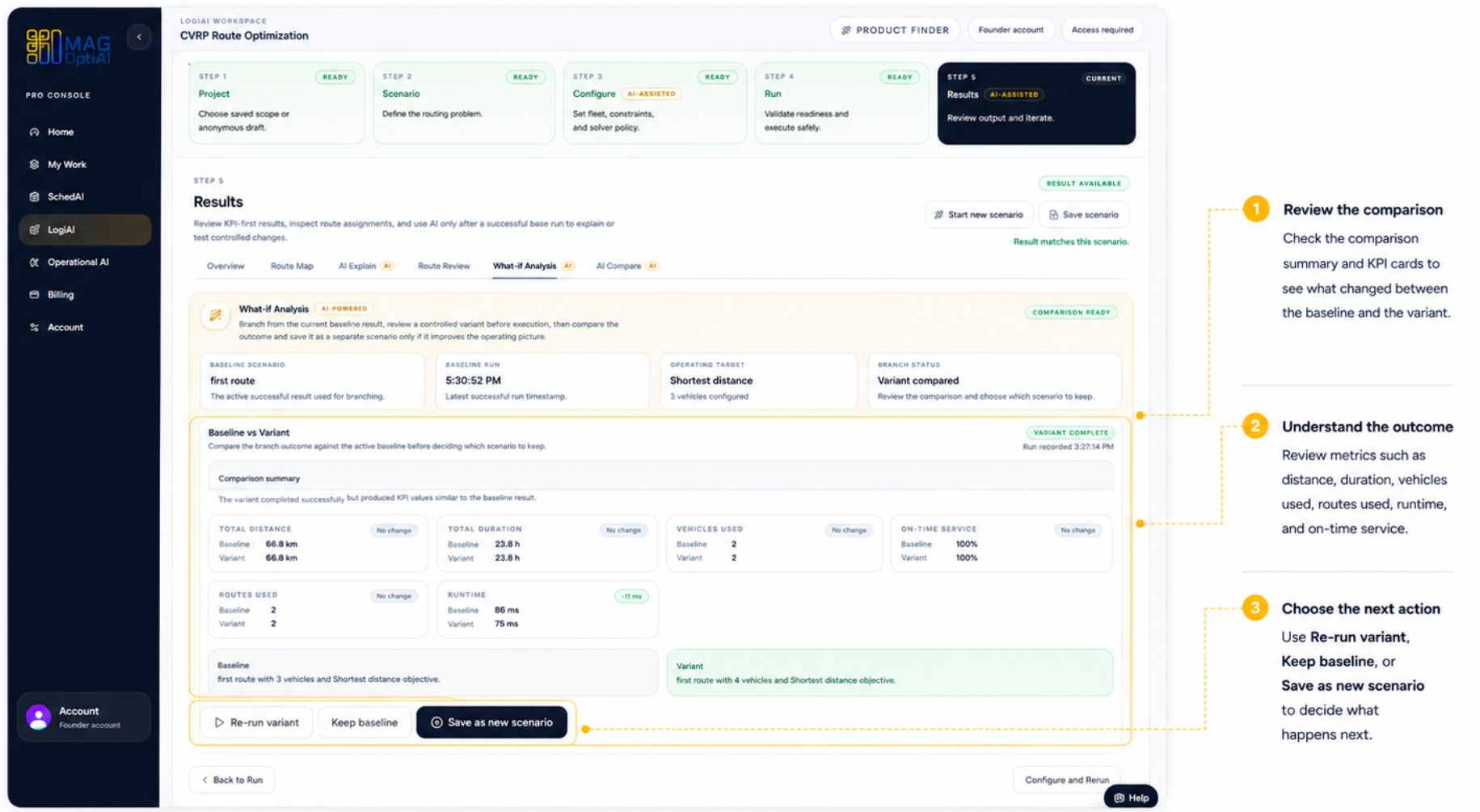
Review the comparison between the baseline and the variant. Check the key metrics, comparison summary, and final options to understand what changed and decide which result you want to keep.
Tips
Continue with nearby tasks in the same category.
Ask focused questions about generated results so MAG OptiAI can explain KPIs, charts, schedules, routes, model outputs, or document answers using visible output.
This guide helps you configure a scenario with confidence. You will learn what AI Config is for, how to review required inputs, how to choose configuration options, and how to validate setup before running the model.
Compare two results side by side to understand what changed between them and decide which option performs better.
Next
Return to the full how-to library or step back to the resource hub when you want a different kind of guide.